 SlideshowVideoMaker
A complete guided tour
Learn every screen and feature, with step-by-step instructions and screenshots taken from the app. Labels may vary slightly by app version.
Projects: create, continue & manage
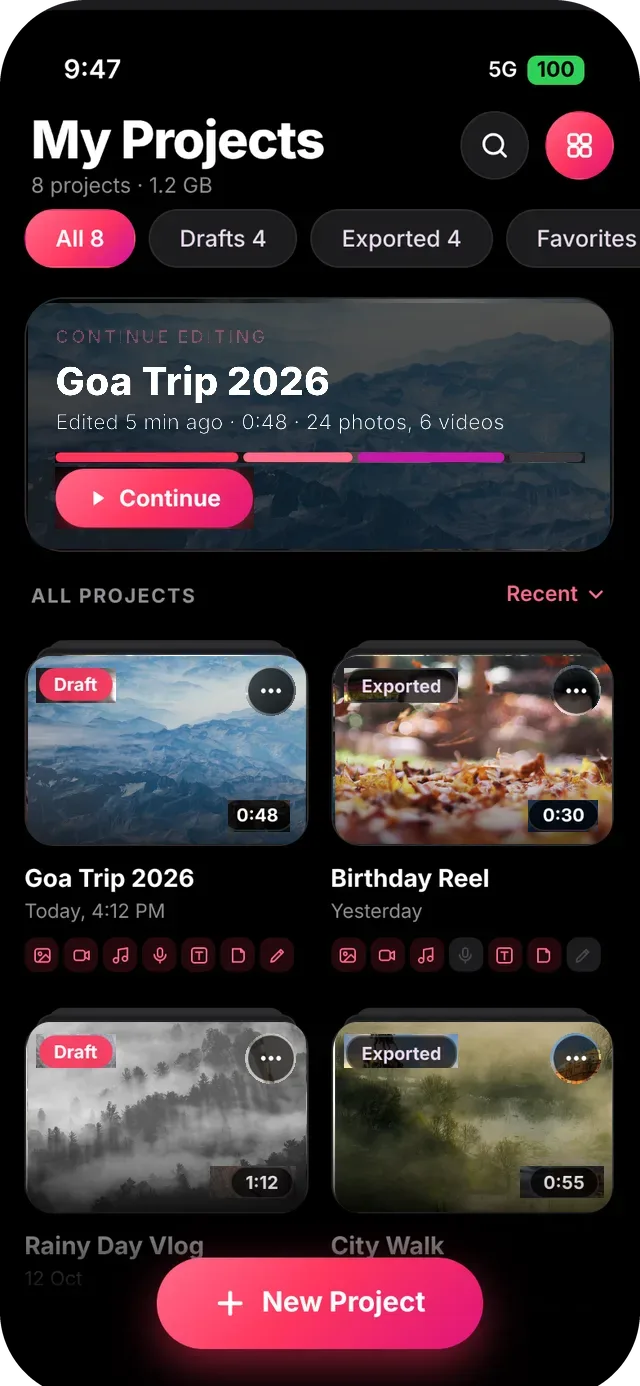
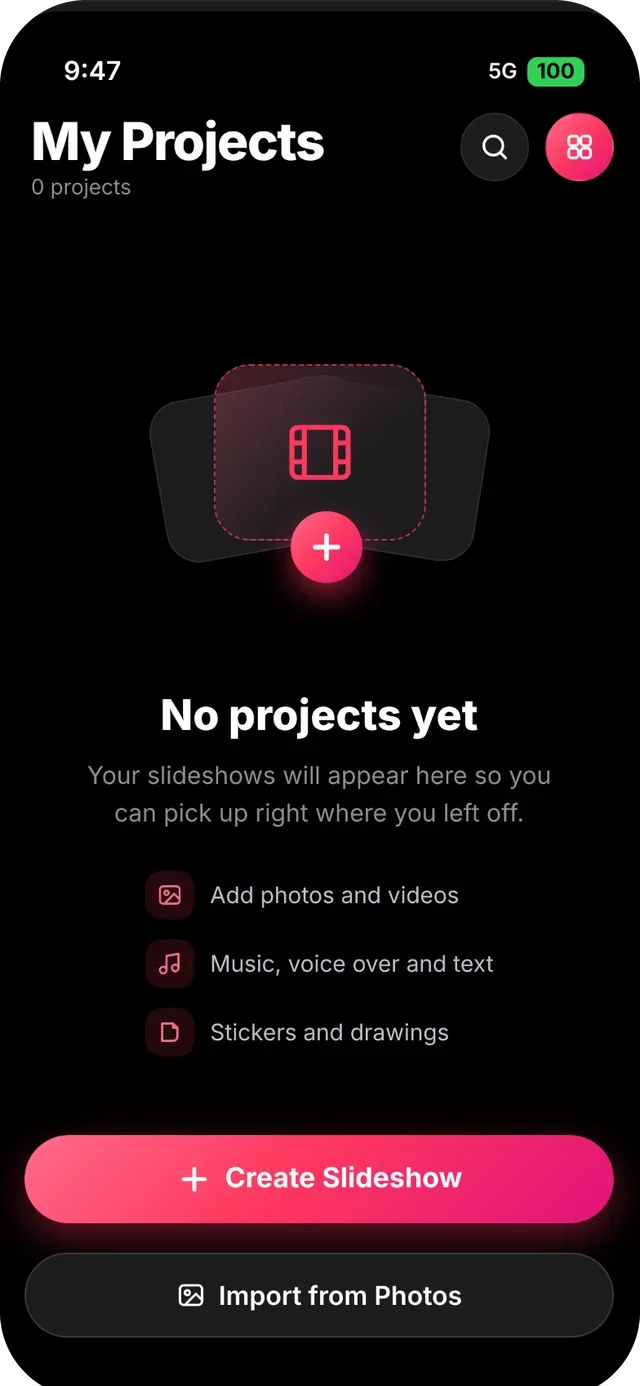
The Projects screen is your home base. Every slideshow you start is saved here automatically.
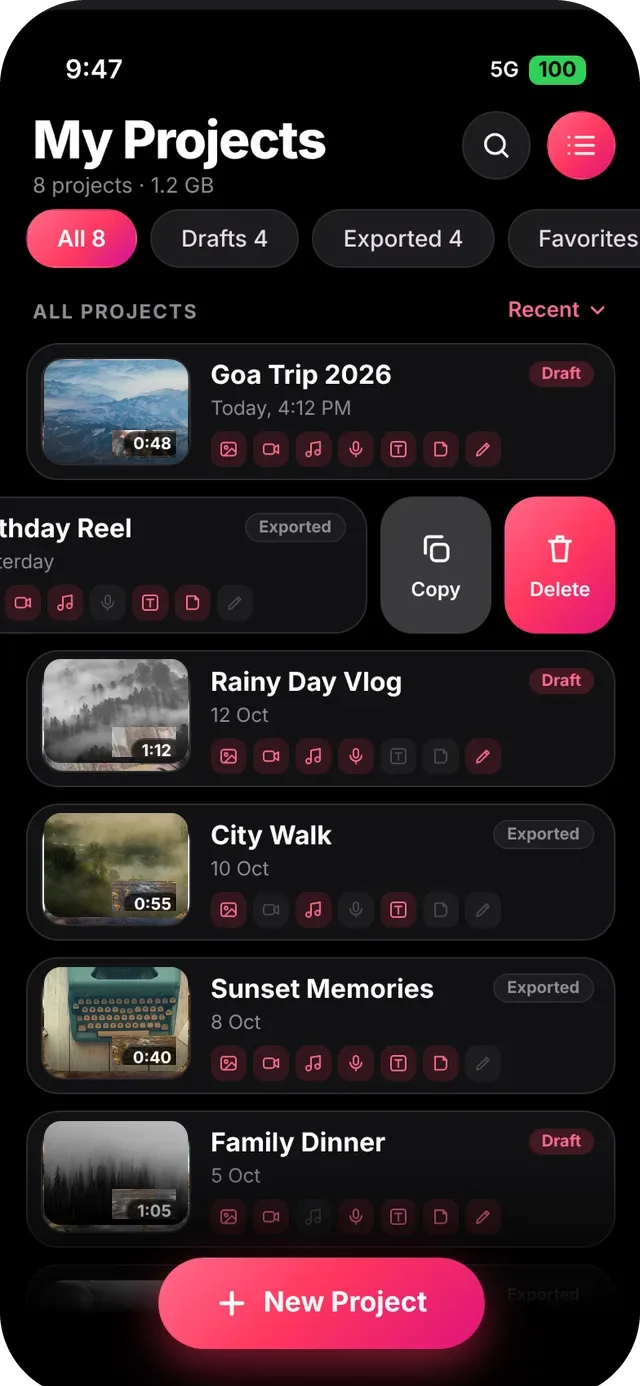
- Open the app to land on My Projects. The most recent project sits on top as Continue Editing, followed by every project as a card with a cover, its length, a Draft or Exported tag and small icons for the kinds of media inside.
- Find a project with the filter chips (All, Drafts, Exported, Favorites), the Recent sort or the search icon. The view toggle switches between cards and compact rows.
- Tap New Project (or Create Slideshow on an empty screen), pick the photos and videos you want and add them. Import from Photos brings more in later.
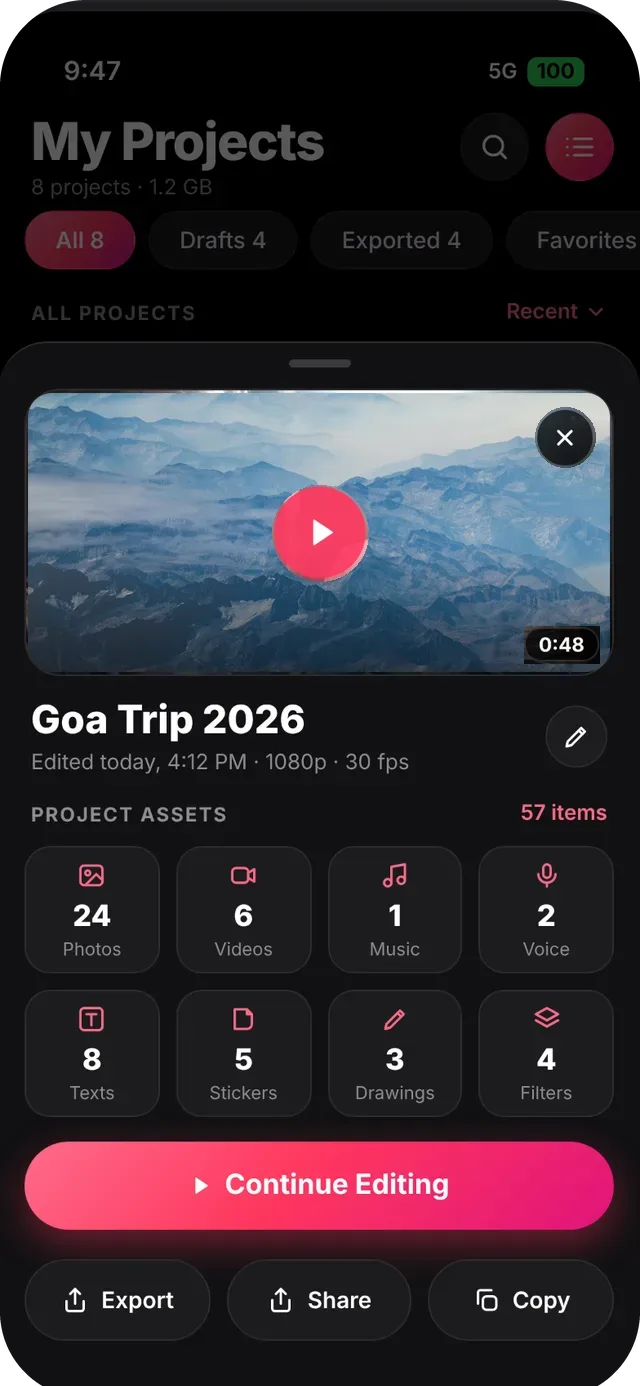
- Tap a project to see what is inside: photos, videos, music, voice, texts, stickers, drawings and filters. Choose Continue Editing to reopen it exactly where you left off, or Export, Share or Copy.
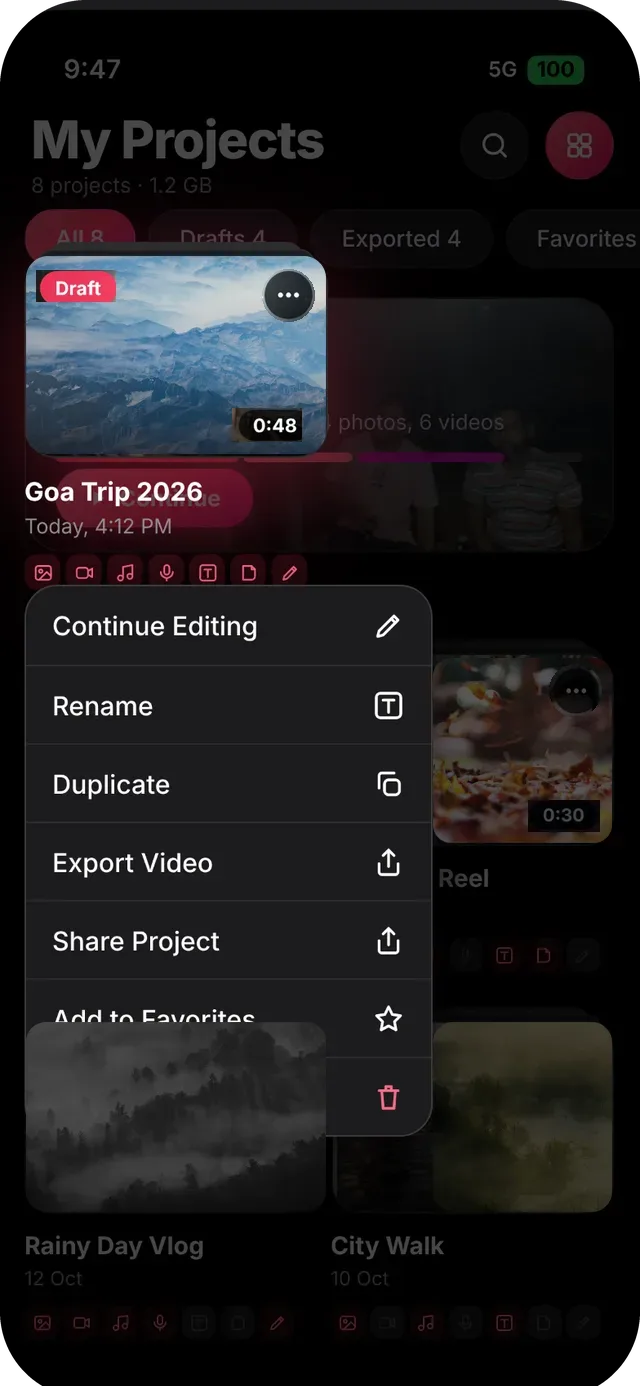
- Press and hold a card for the quick menu: Continue Editing, Rename, Duplicate, Export Video, Share Project, Add to Favorites and Delete. In the list view, swipe left on a row for Copy and Delete.
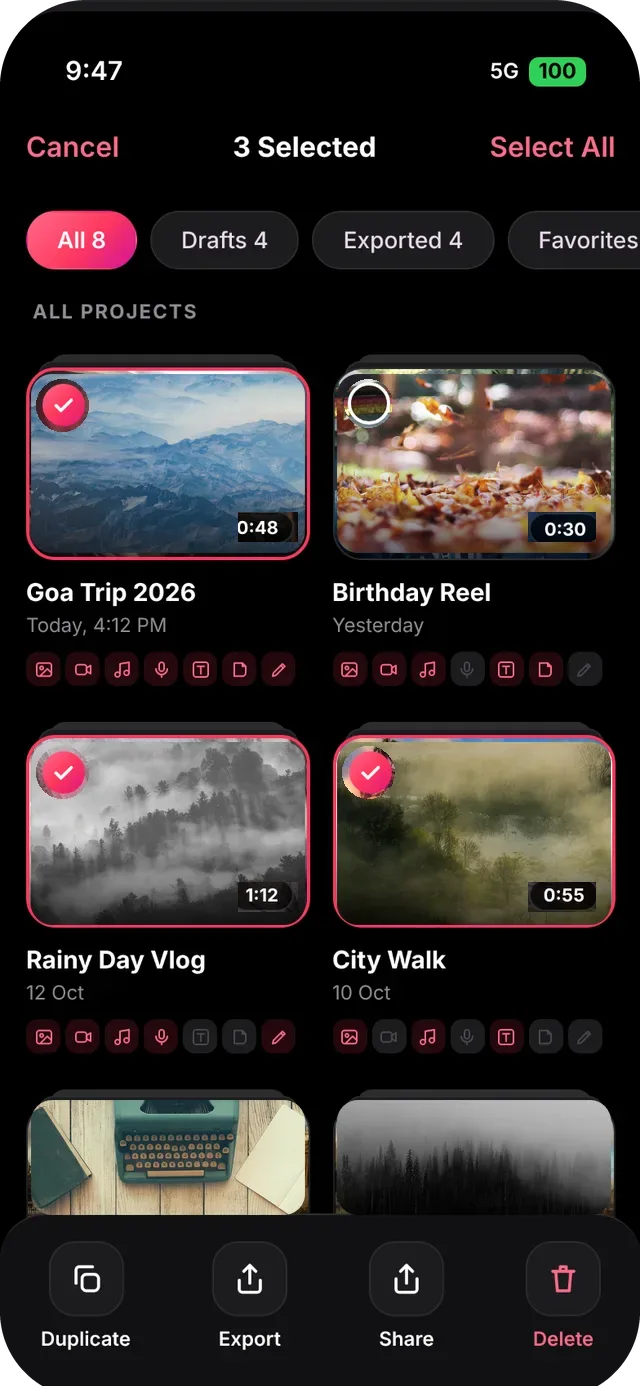
- To manage several projects at once, enter select mode, tick the projects, then use the bottom bar: Duplicate, Export, Share or Delete.
Transitions & template packs
Transitions control how one slide gives way to the next. Set them one by one, or pick a ready-made template pack and preview it live before you use it.
A. Pick a transition for your clips
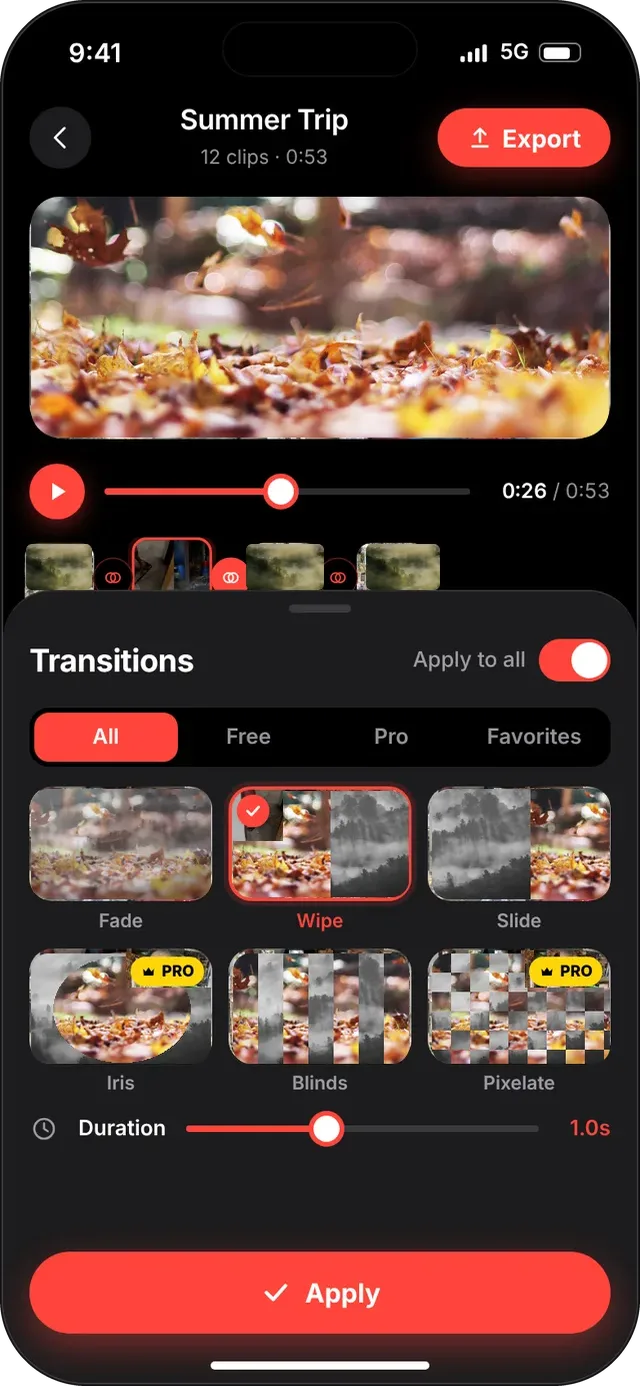
- In the editor, tap the transition node between two clips on the timeline, or tap Transitions in the bottom toolbar. The sheet opens and previews animate live.
- Filter the list with All, Free, Pro or Favorites, then tap a transition such as Fade, Wipe, Slide, Iris, Blinds or Pixelate. The selected one gets a ring and a check; Pro transitions carry a crown badge.
- Drag the Duration slider for a quick snap or a slow reveal. Switch on Apply to all to set every transition in the video at once.
- Tap Apply. You can reopen any node later and change it.
B. Choose a template pack
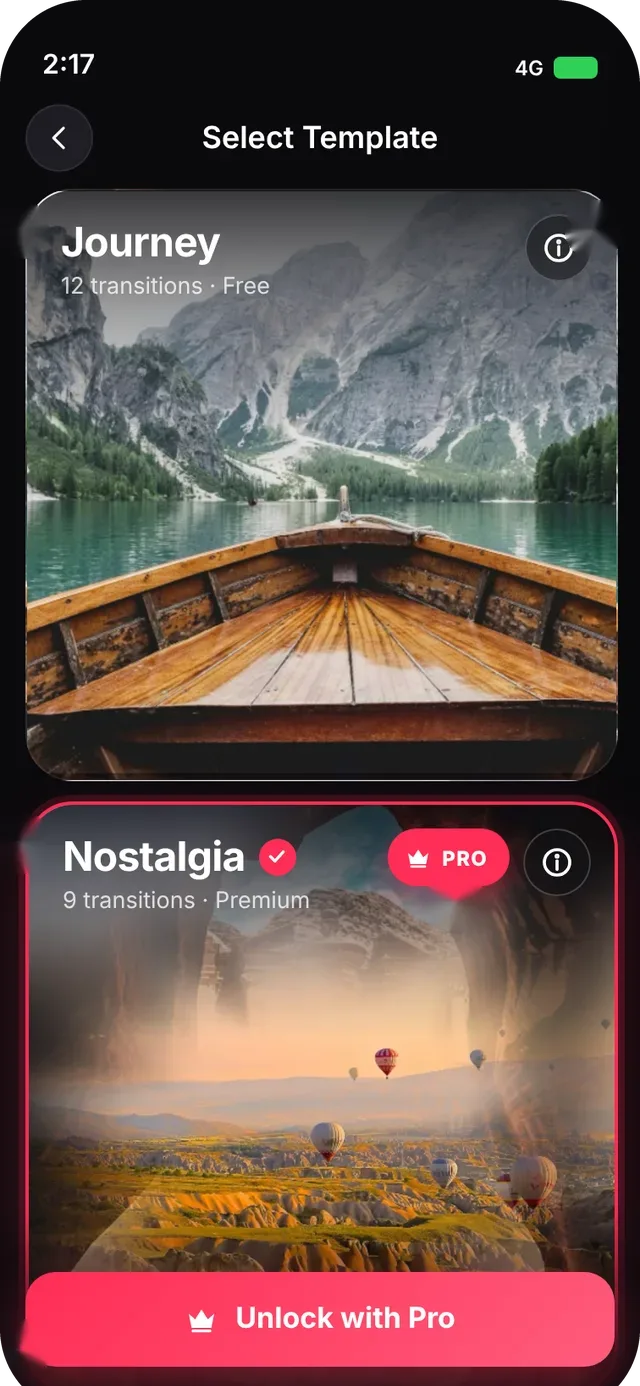
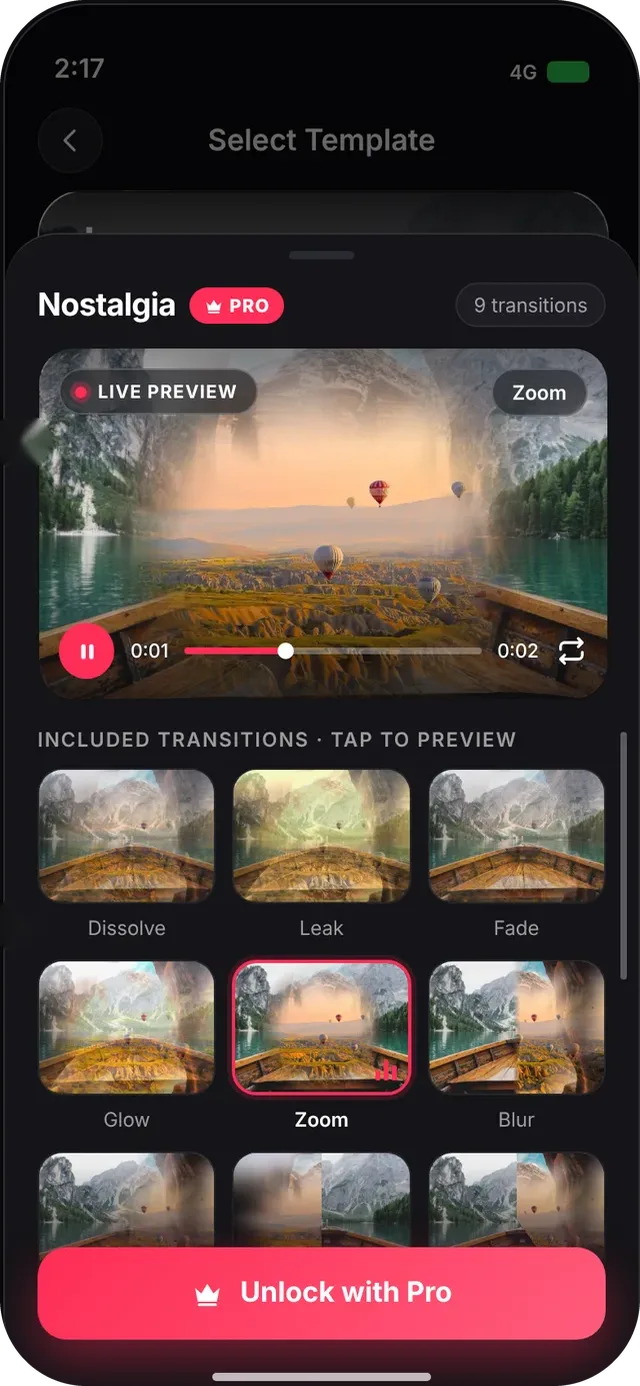
- Open Select Template. Each pack is a large square card with its name, the number of transitions and whether it is Free or Premium. Premium packs show a PRO badge.
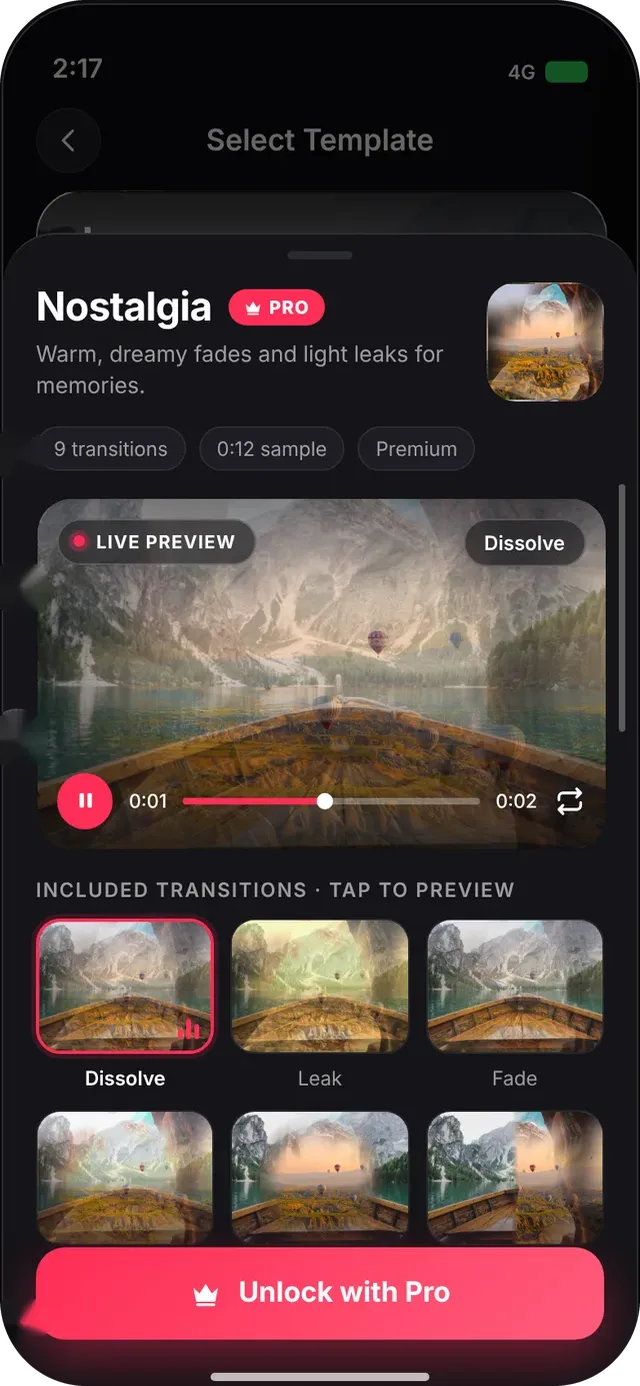
- Tap a pack to select it (pink ring and tick). Tap the info button on its card to open the details: description, transition count, sample length and plan, plus a Live preview with play/pause, a scrubber and loop.
- Tap any transition tile under Included transitions to preview it in the live preview. Nothing is applied to your project while you preview.
- Use the pinned button at the bottom. It reads Use <pack name> for free packs and for Pro members, and Unlock with Pro when a premium pack needs a subscription.
The editor & timeline
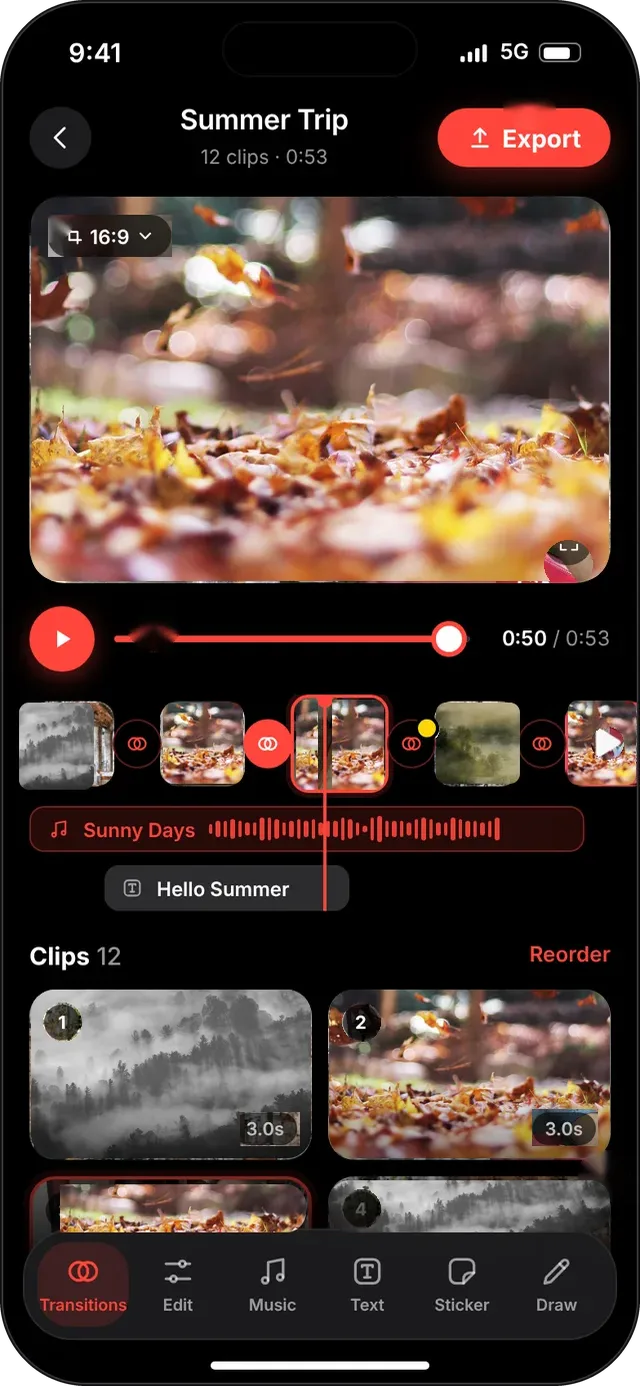
The editor shows your whole video at a glance: preview on top, playback and timeline in the middle, clips and tools below.
- Preview: your video plays in a rounded preview. The chip in the corner shows the aspect ratio (for example 16:9) and the corner button opens full screen. Tap Export at the top right when you are done.
- Move around: tap the play button or drag the scrubber, or swipe the timeline. The time readout shows where you are and the total length.
- Timeline: your clips appear as thumbnails with a transition node between each pair. Music and text get their own tracks under the clips, for example a music bar with its waveform and a text bar.
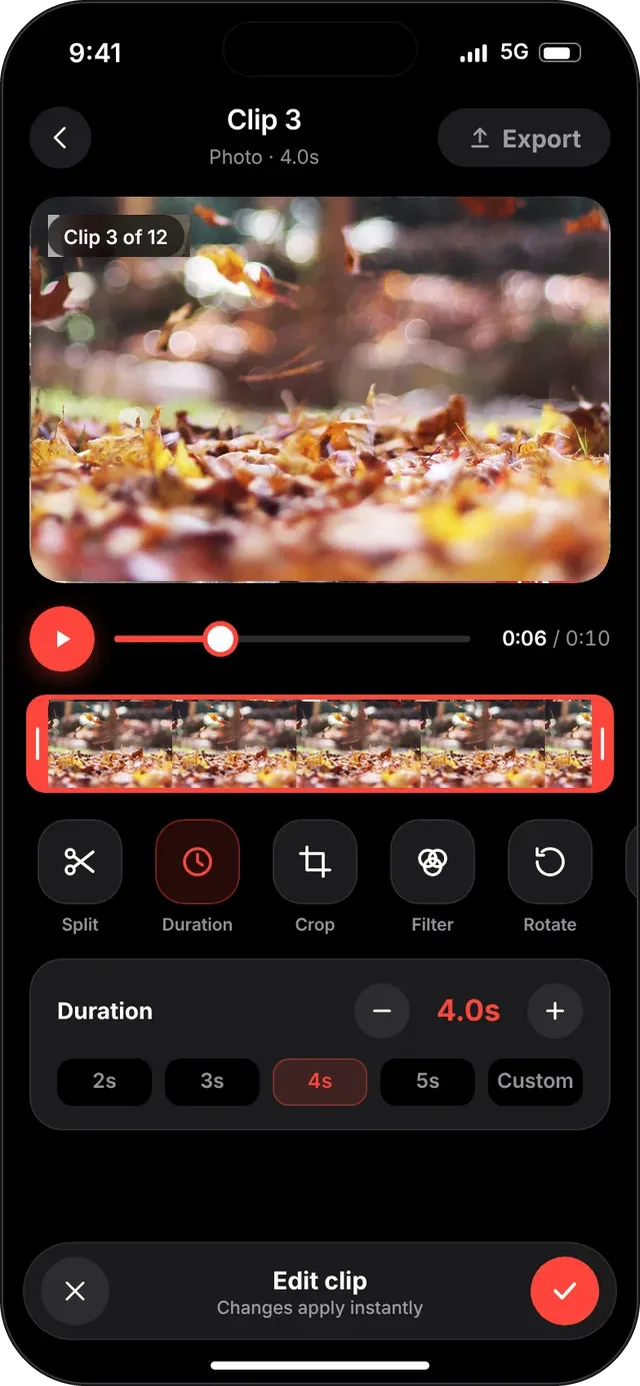
- Edit a clip: tap a clip to select it. A trim frame with handles appears on its strip, and quick actions show below: Split, Duration, Crop, Filter, Rotate and more. Swipe the row for the rest.
- Duration: open Duration and use the minus and plus buttons, a preset (2s, 3s, 4s, 5s) or Custom. Changes apply instantly; tap the check to close, or the cross to leave without changes.
- Reorder and delete: under Clips, tap Reorder to rearrange your slides. Delete is the only action shown as destructive text, so it is hard to tap by accident.
- Toolbar: the floating bar at the bottom holds Transitions, Edit, Music, Text, Sticker and Draw. The active tool is highlighted.
Add music
Browse built-in music by category, preview songs, then choose which part of the song plays under your video.
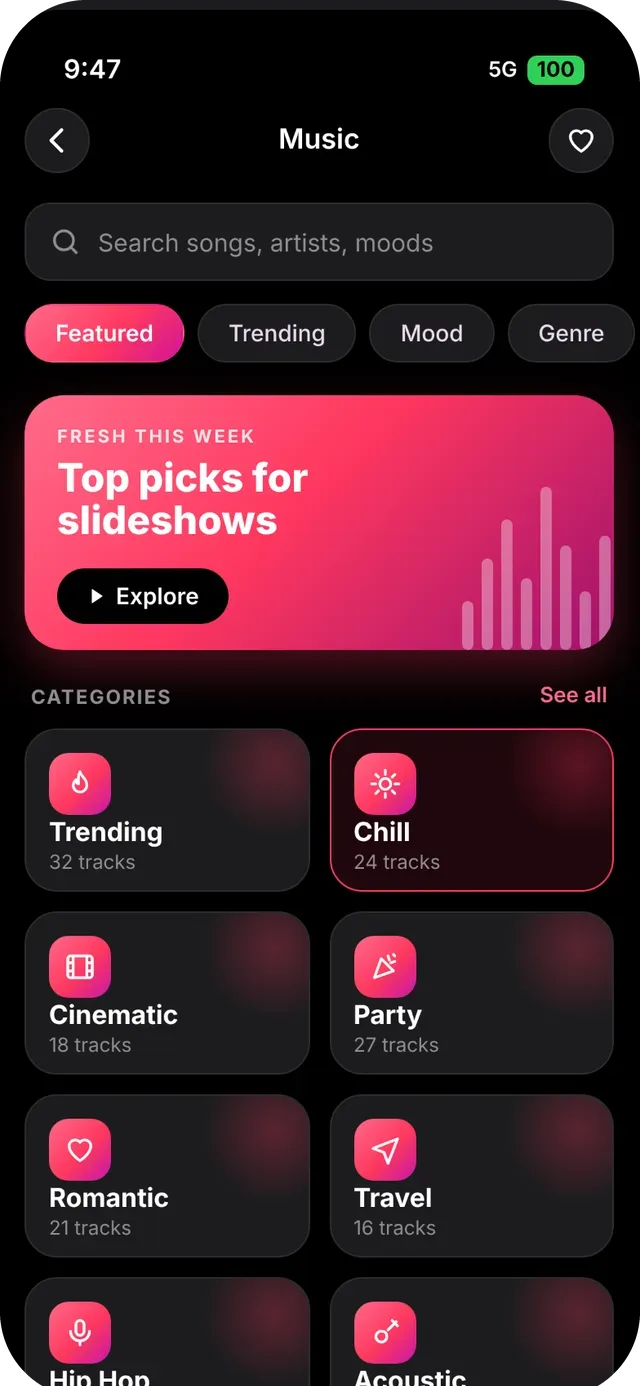
- Tap Music in the editor toolbar. At the top you can search songs, artists and moods, or switch between Featured, Trending, Mood and Genre.
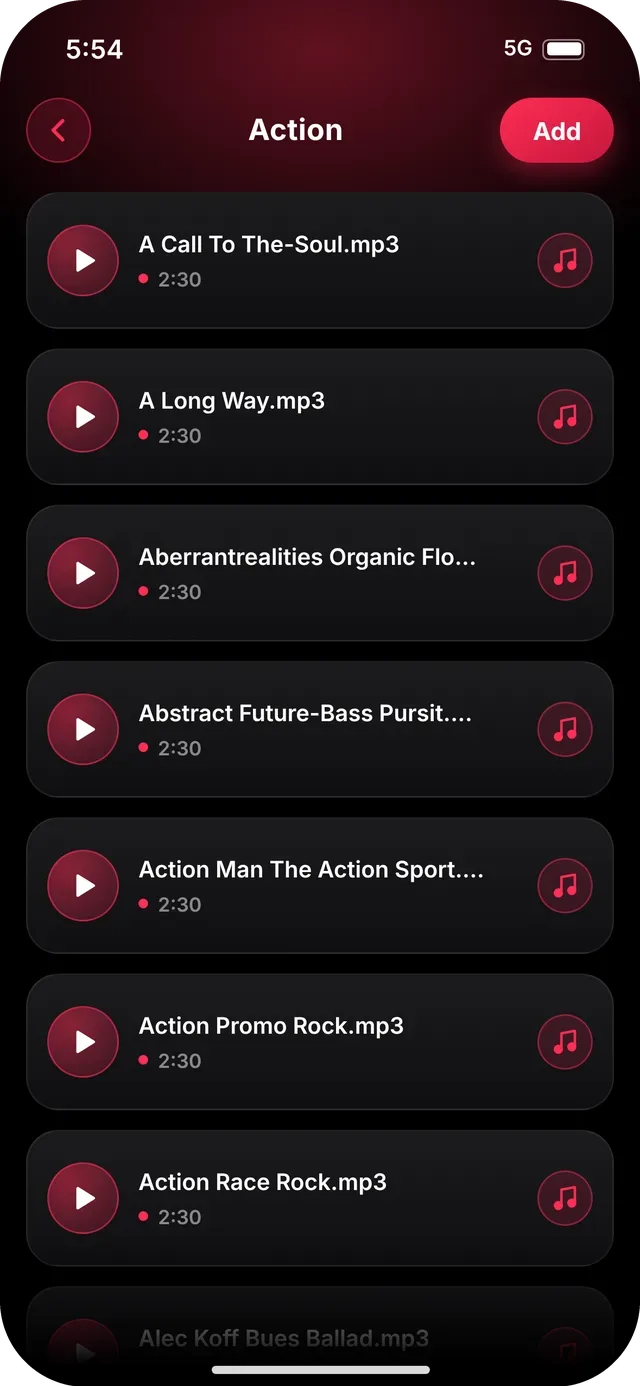
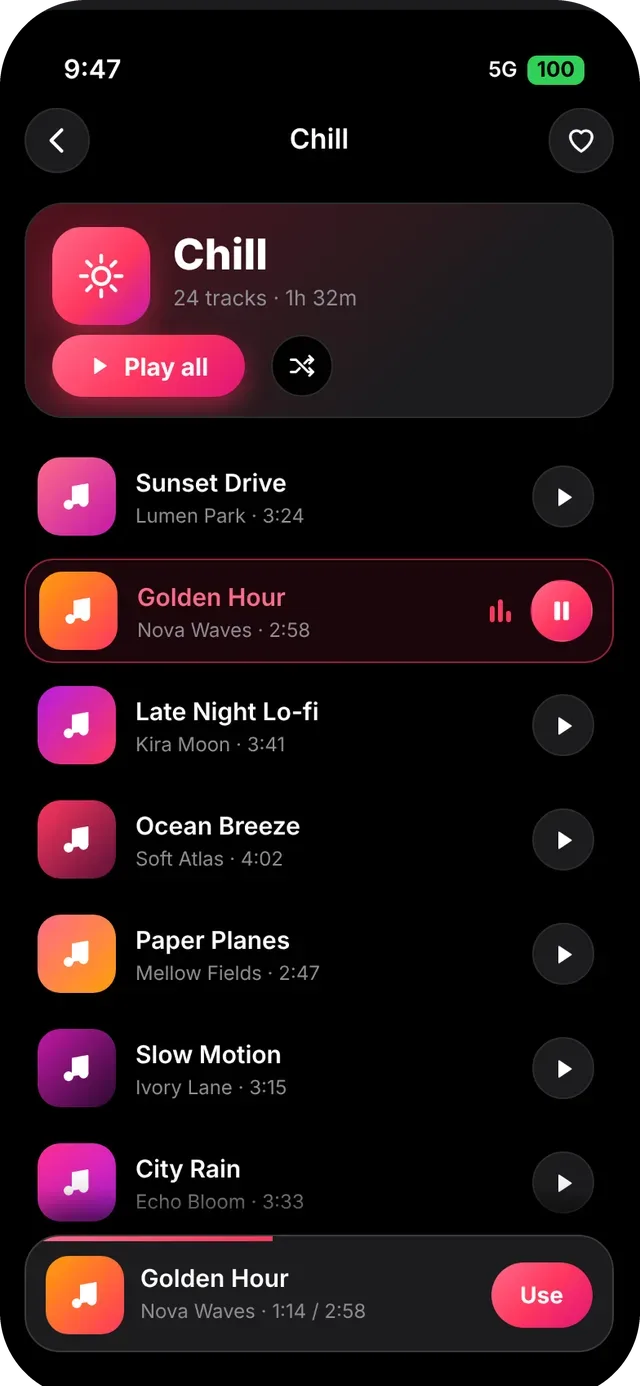
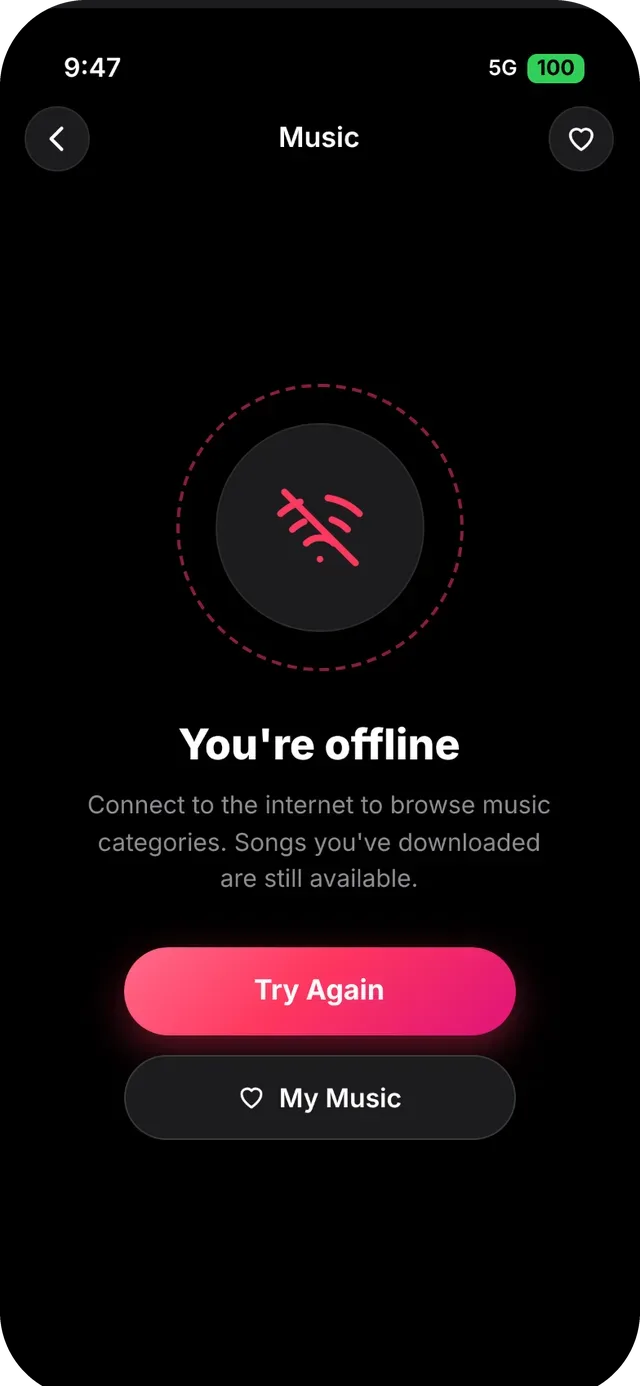
- Open a category such as Chill, Cinematic, Party, Romantic, Travel, Hip Hop or Acoustic (tap See all for the rest). Tap the play button on any song to preview it. Play all and shuffle are at the top of the list.
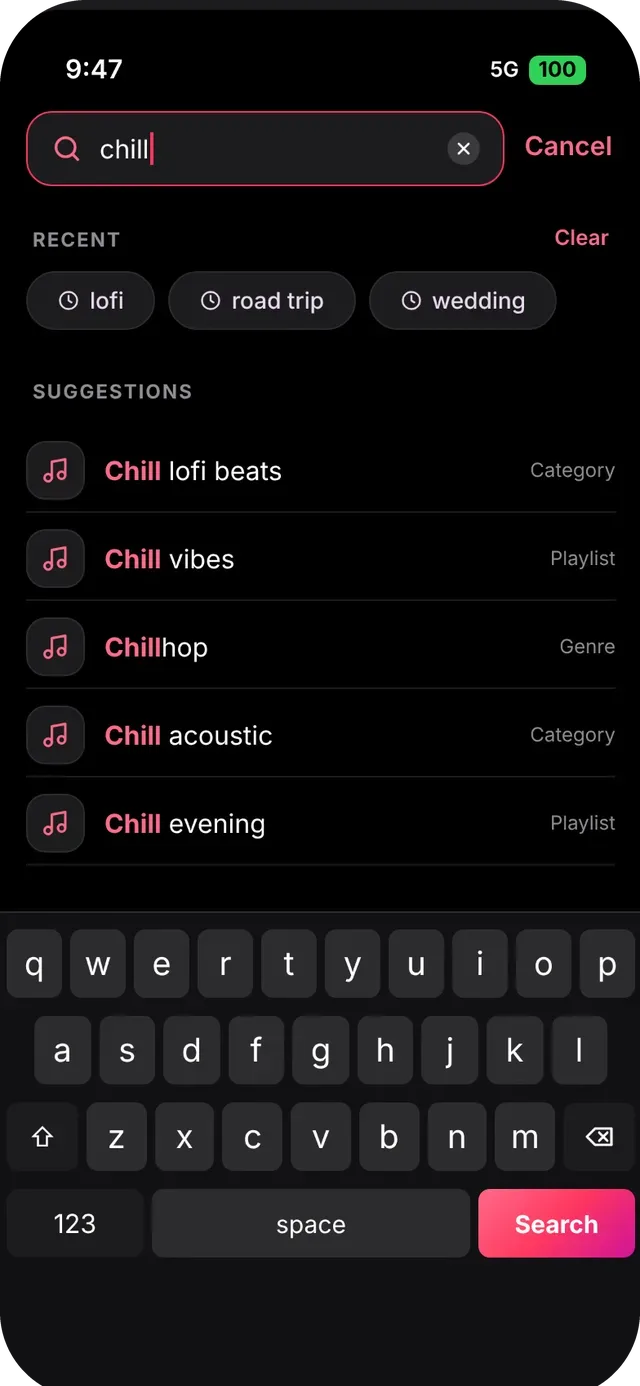
- In search, recent searches appear as chips and suggestions update as you type, with the matching letters highlighted. Each suggestion is labeled as a Category, Playlist or Genre.
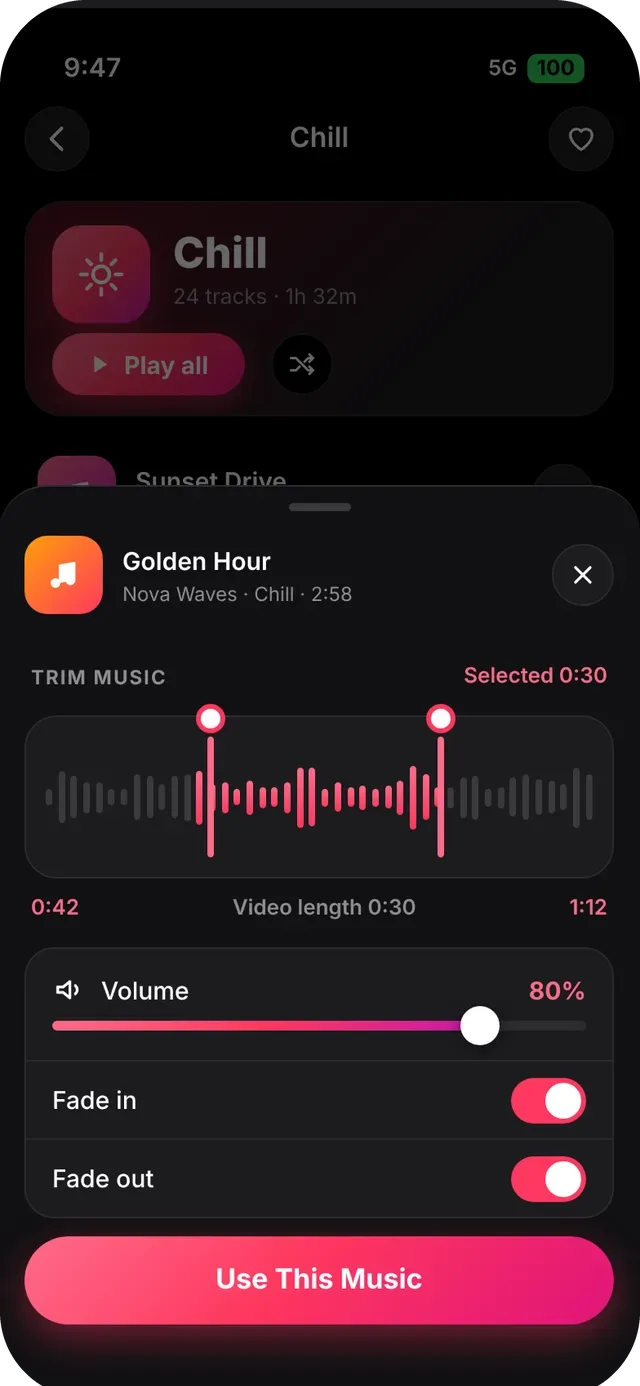
- To add a song, choose Add or open Trim & use. Drag the two handles on the waveform to choose the part you want. The selected length and your video length are both shown, so the clip always fits.
- Set the Volume, switch Fade in and Fade out on or off, then tap Use This Music. It appears as a track on the timeline.
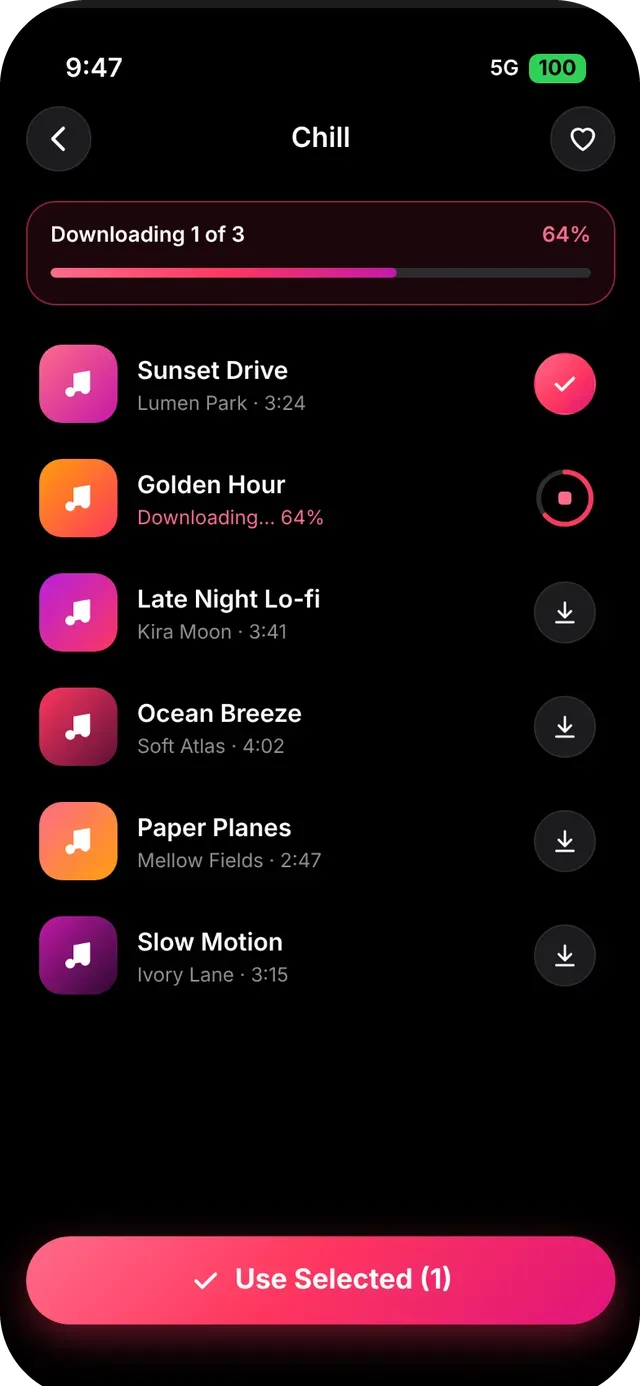
- Tap the download arrow next to a song to keep it for offline use. A ring means it is downloading, a check means it is ready. Select songs and tap Use Selected to add them.
- You can also pick songs from Music on this iPhone or use Import Music. You may need to allow access to your media library.
Record a voice over
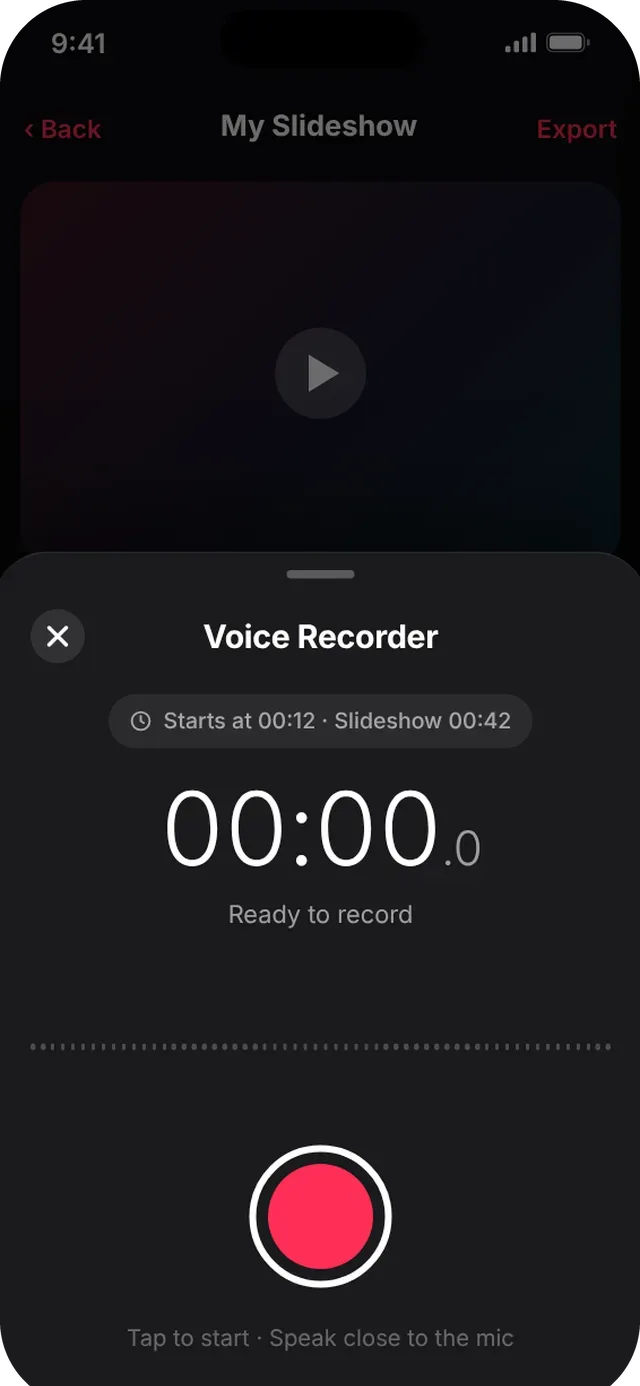
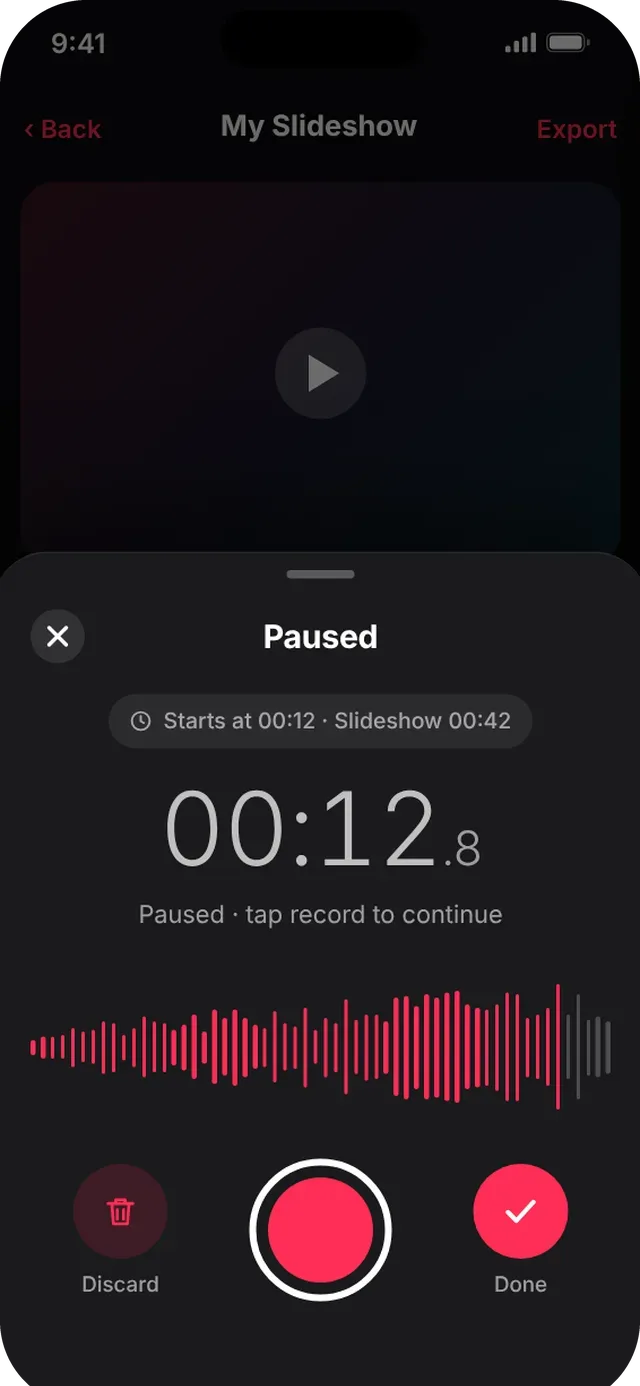
Narrate your slideshow. The recorder is a bottom sheet over the editor, and the recording starts at the playhead.
- Move the playhead to the moment you want to start talking, then open the Mic tool. The sheet shows Starts at your position and the slideshow length.
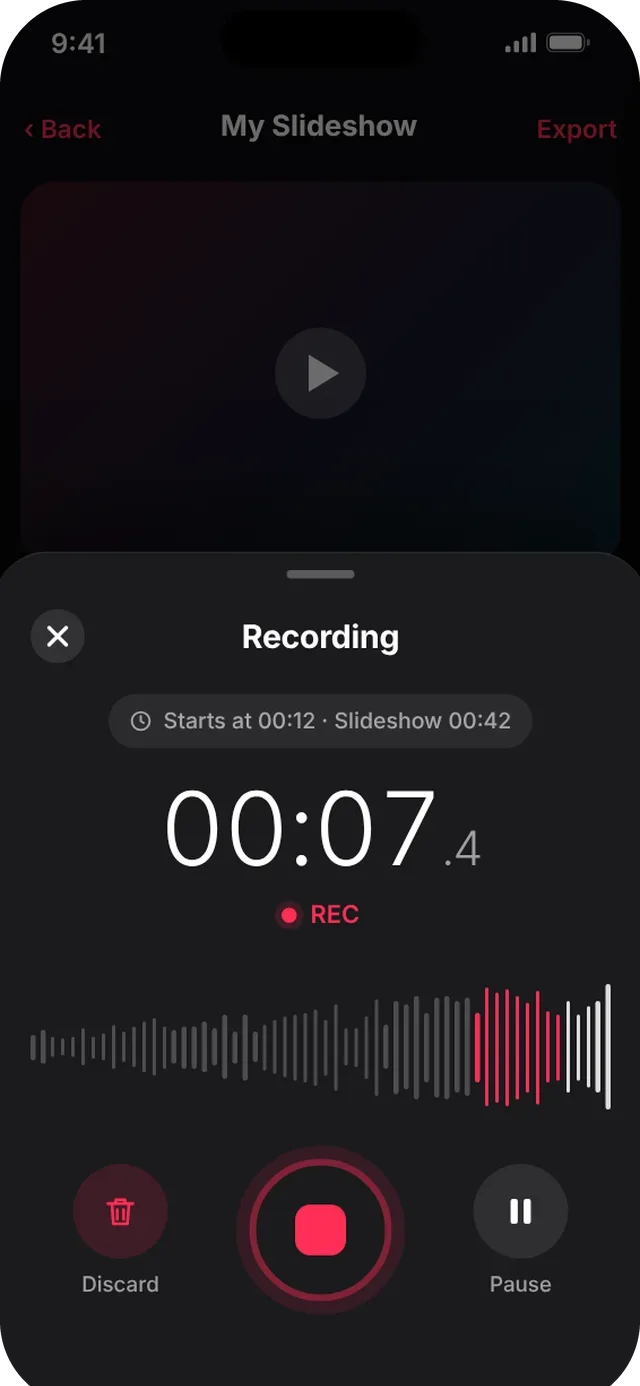
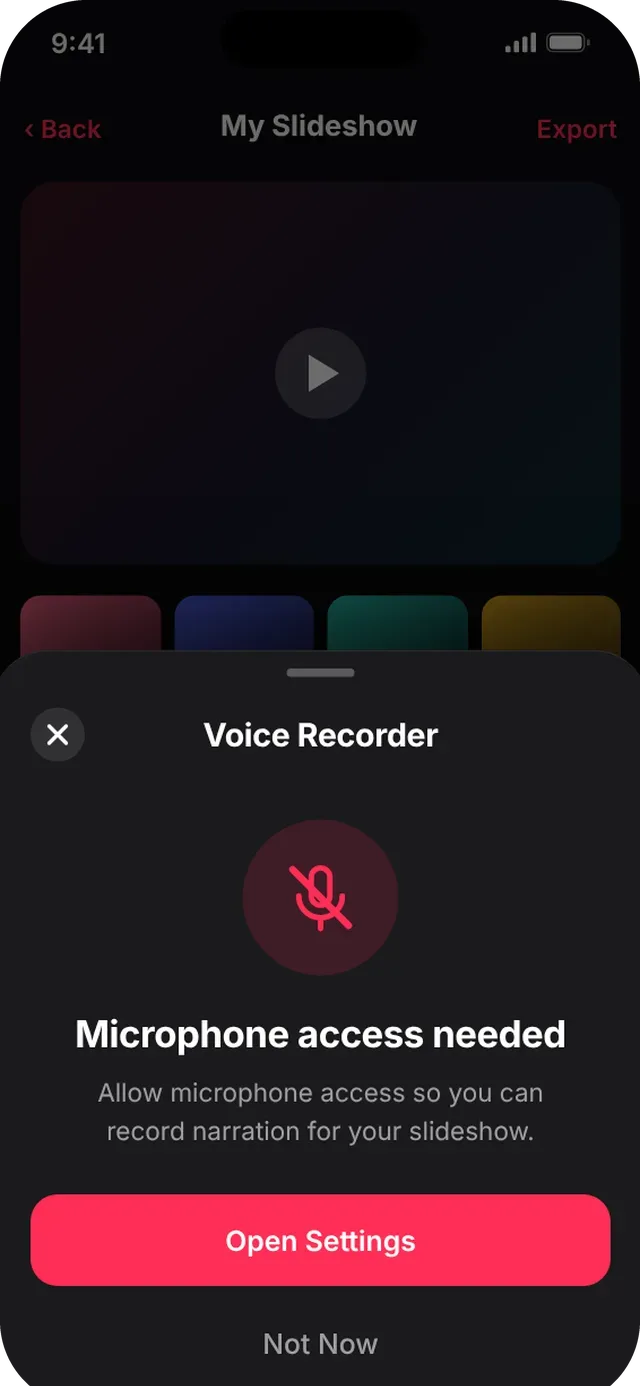
- The first time, allow microphone access. Tap the big red record button and speak close to the mic. The timer counts up and the waveform scrolls live.
- Tap Pause to take a break. While paused you can resume with record, Discard the take, or tap the check (Done) to finish.
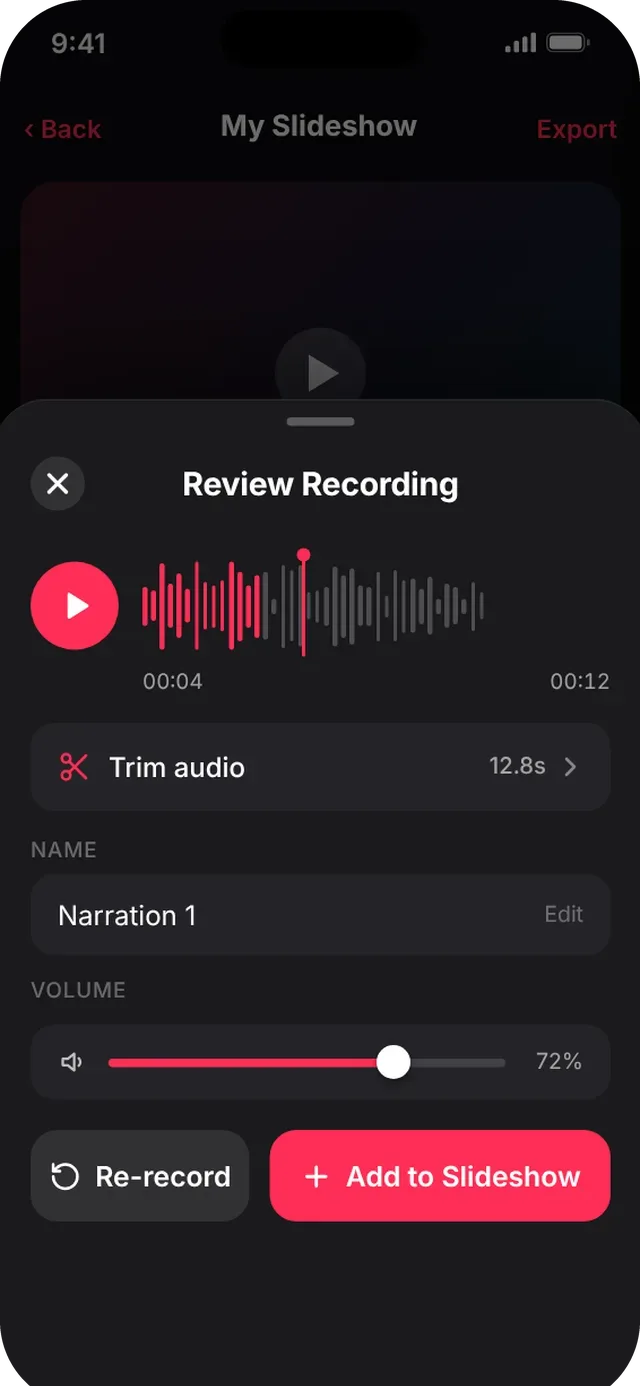
- On Review Recording play it back, rename it, set the Volume, then tap Add to Slideshow. Not happy? Tap Re-record.
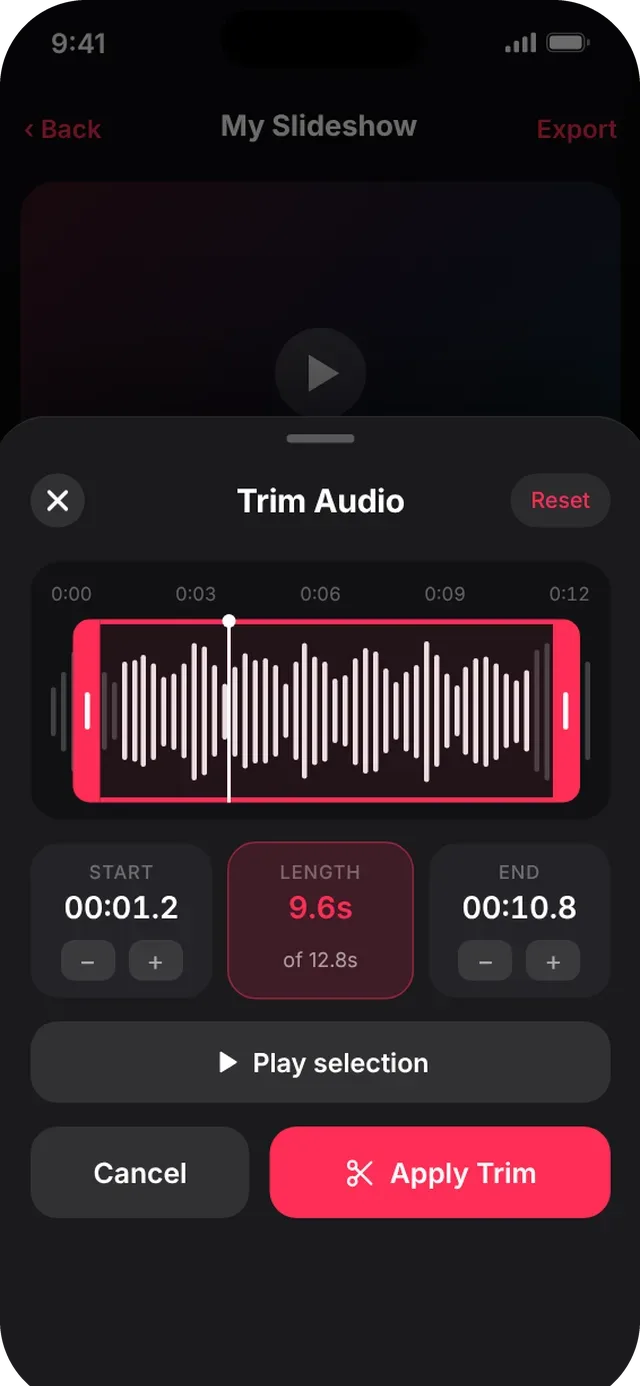
- Tap Trim audio to cut the start and end. Drag the handles or nudge them by 0.1 s, use Play selection to hear the cut, then Apply Trim. Trimming is non-destructive and Reset restores the full take.
Add stickers
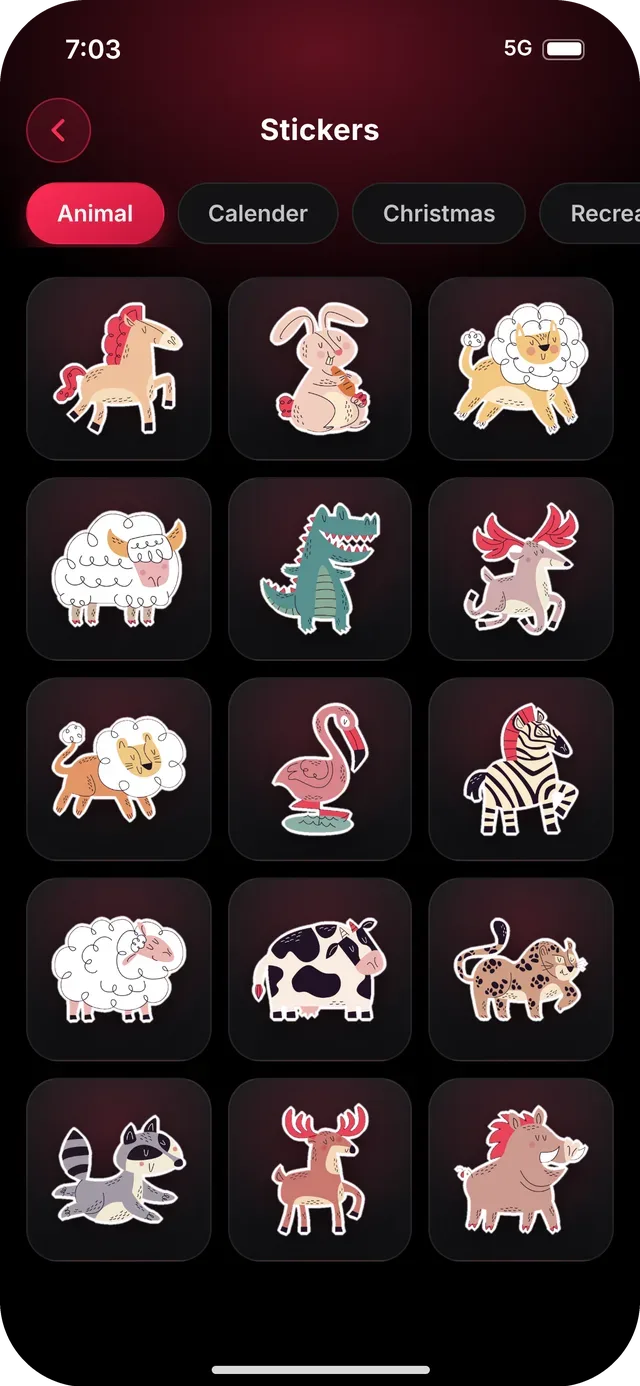
Choose from 255 stickers in 11 collections and decide exactly when each one appears.
- Tap Sticker. Pick a collection tab: Animal, Calendar, Christmas, Recreation, Birthday, Love, Creative, Wedding, Nature, Relaxation or Food.
- Tap a sticker to add it to the video preview.
- Drag to move, pinch to resize and rotate with two fingers.
- Use Set Sticker Duration or the sticker bar on the timeline to choose when it shows and hides.
- Tap the sticker and choose delete to remove it.
Add text & the text editor
Create titles and captions, style them, and choose how they enter the video.
- Tap Text and type your message. The keyboard opens first, with the tabs Font, Color, Style, Layout and Animate one tap above it. Your text appears live on the preview with corner handles to resize and a rotate handle.
- Font: pick a font card (Modern, Classic, Bold, Mono, Elegant, Rounded and more; 180+ fonts in total). Filter by category chips such as All, Clean, Display, Script and Retro, then set the size with the slider.
- Color: switch between Solid and Gradient, pick a swatch, then fine-tune with the Hue and Opacity sliders.
- Style: toggle Bold, Italic, Underline and Strikethrough. Switch on Shadow (with blur), Outline (with width) or Background pill. The sliders appear right under each switch.
- Layout: align left, center or right, then adjust Size, Letter spacing, Line height and Rotation.
- Animate: choose an Entrance effect: None, Fade, Slide, Pop, Typewriter or Bounce. Set the Start time and Duration; the timeline bar shows when the text is on screen.
- Tap the check to apply a tab's changes (or the cross to cancel), then tap Done. Drag the text bar on the timeline to change when it starts and ends.
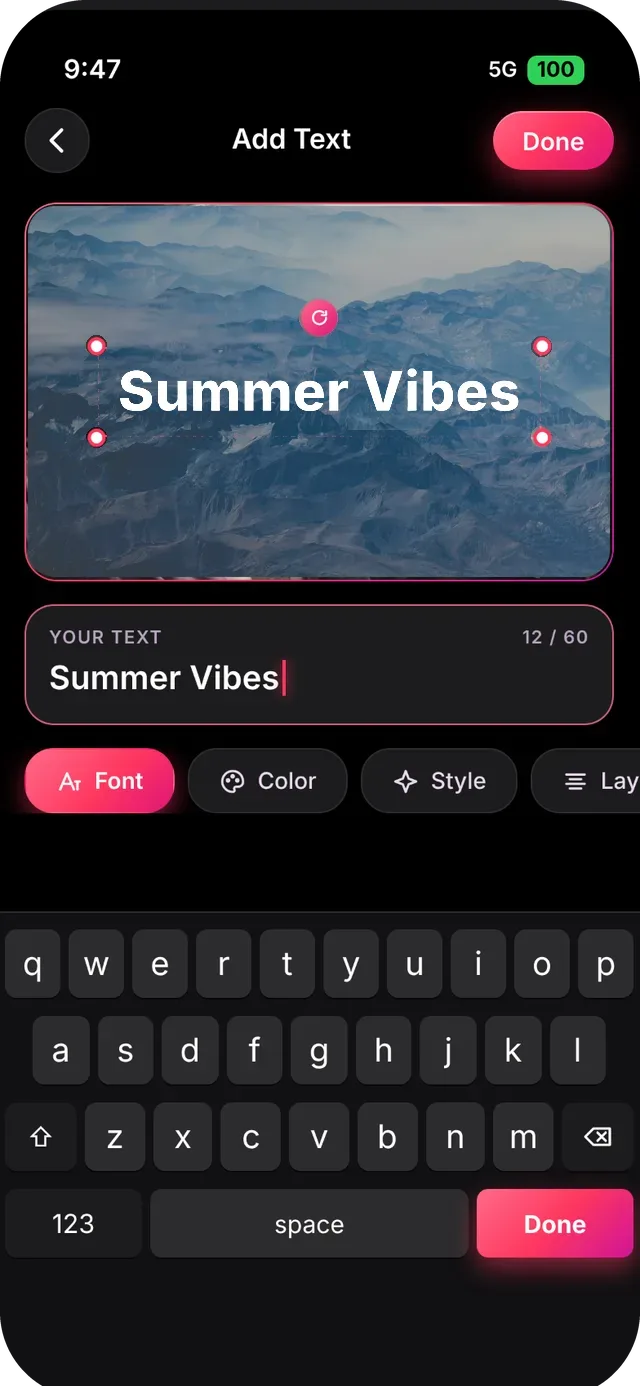
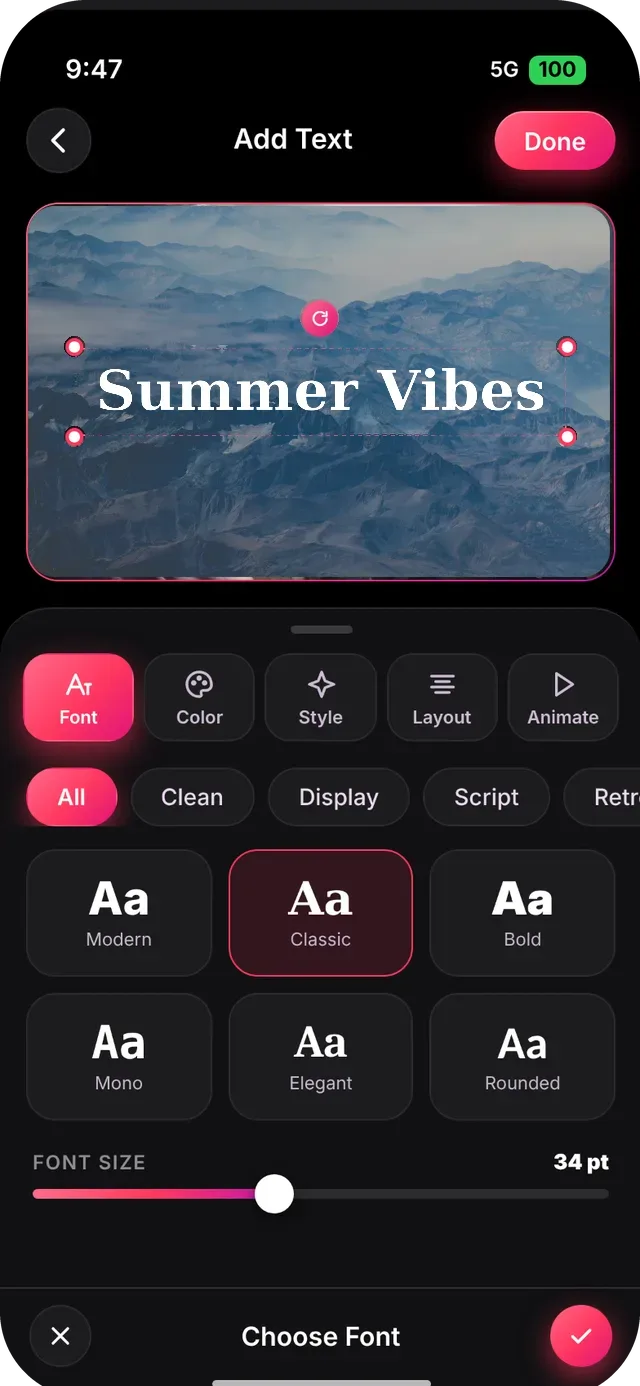
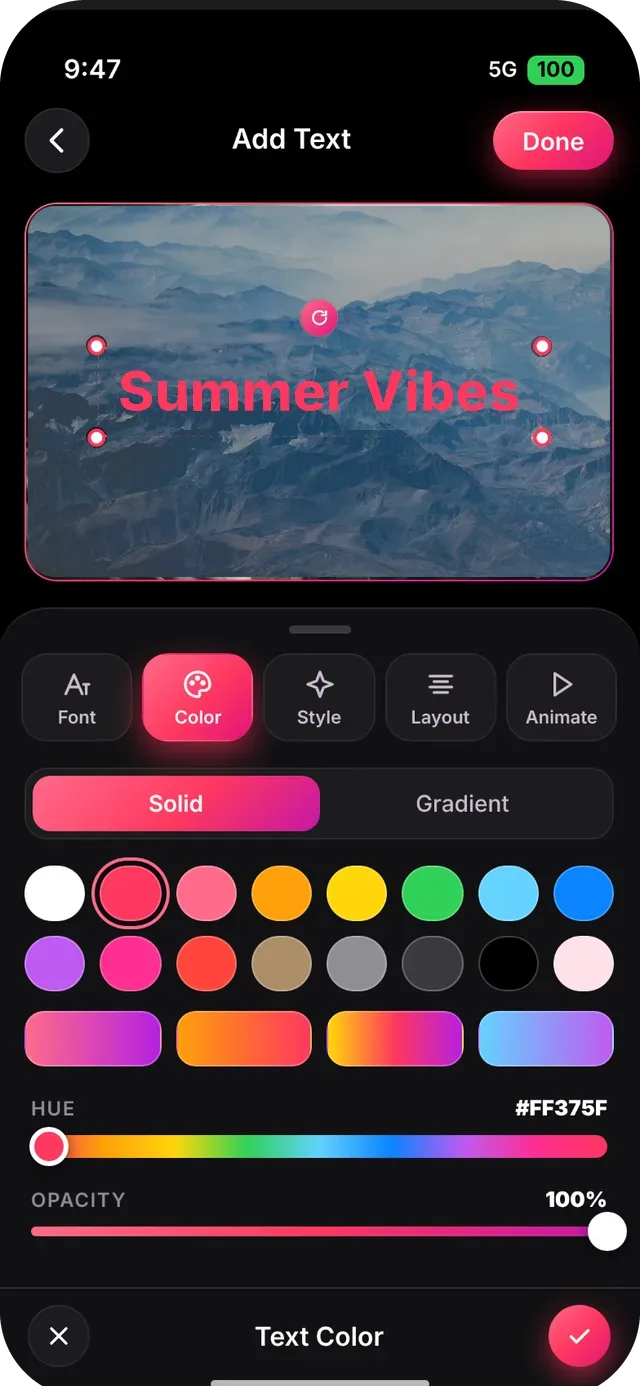
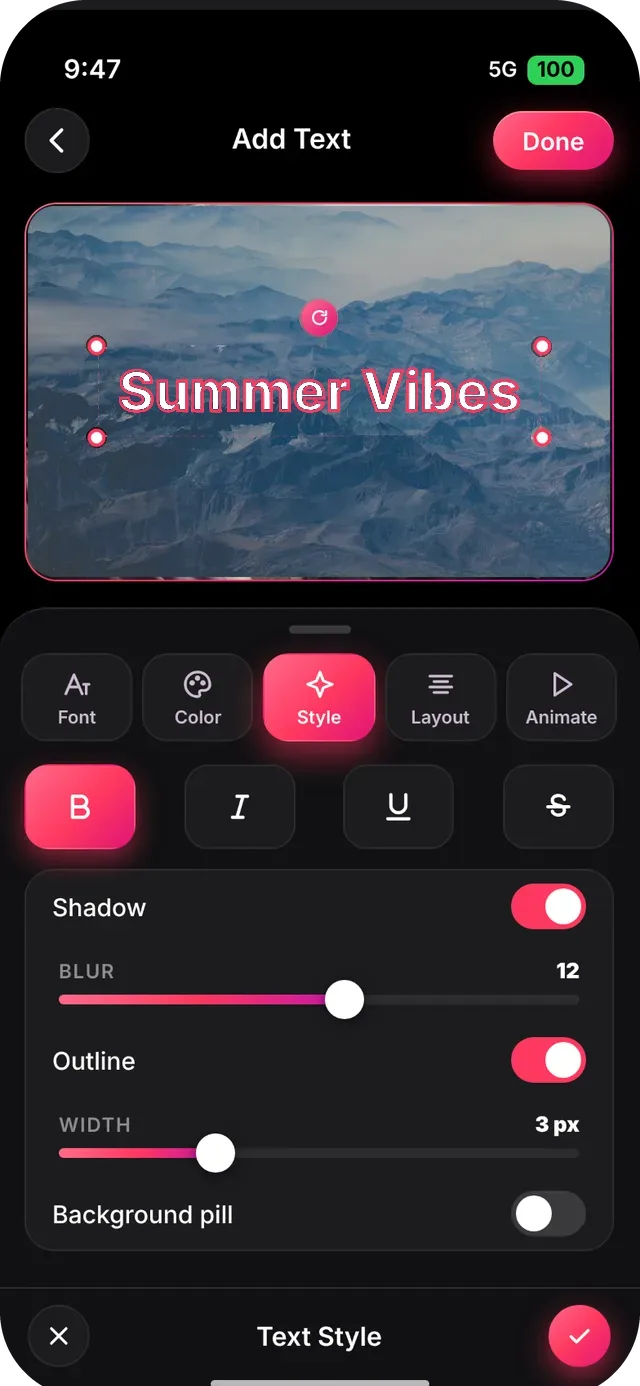
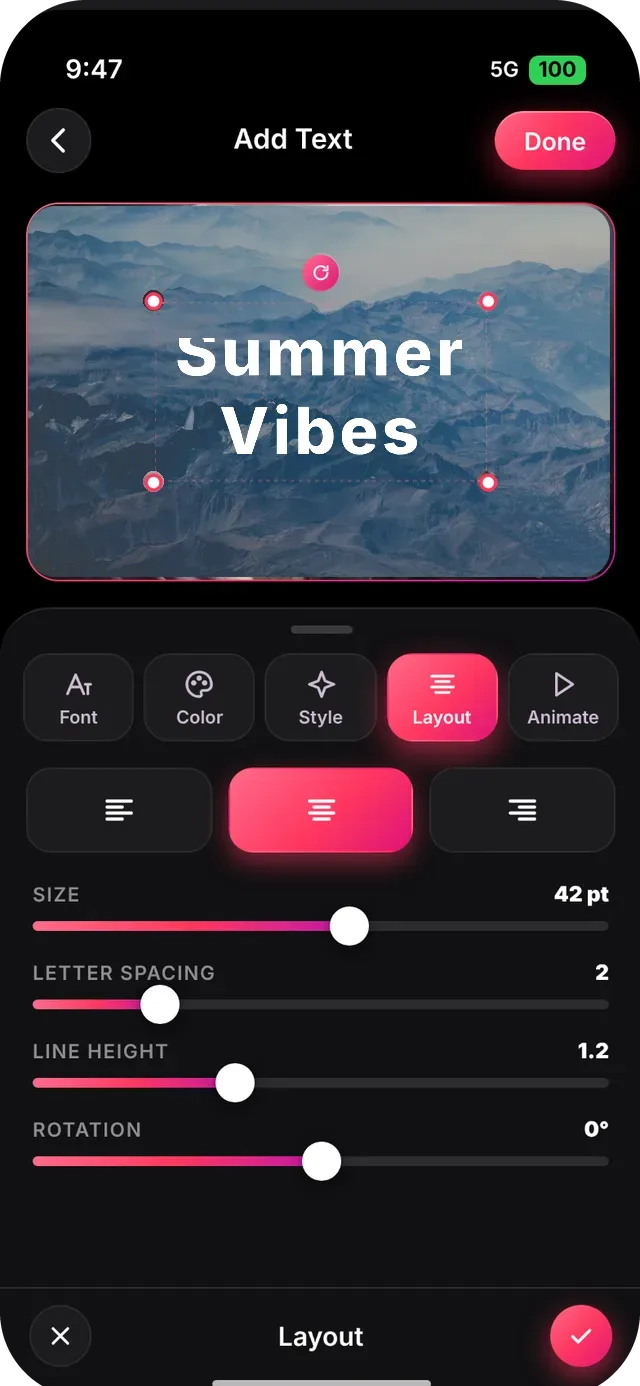
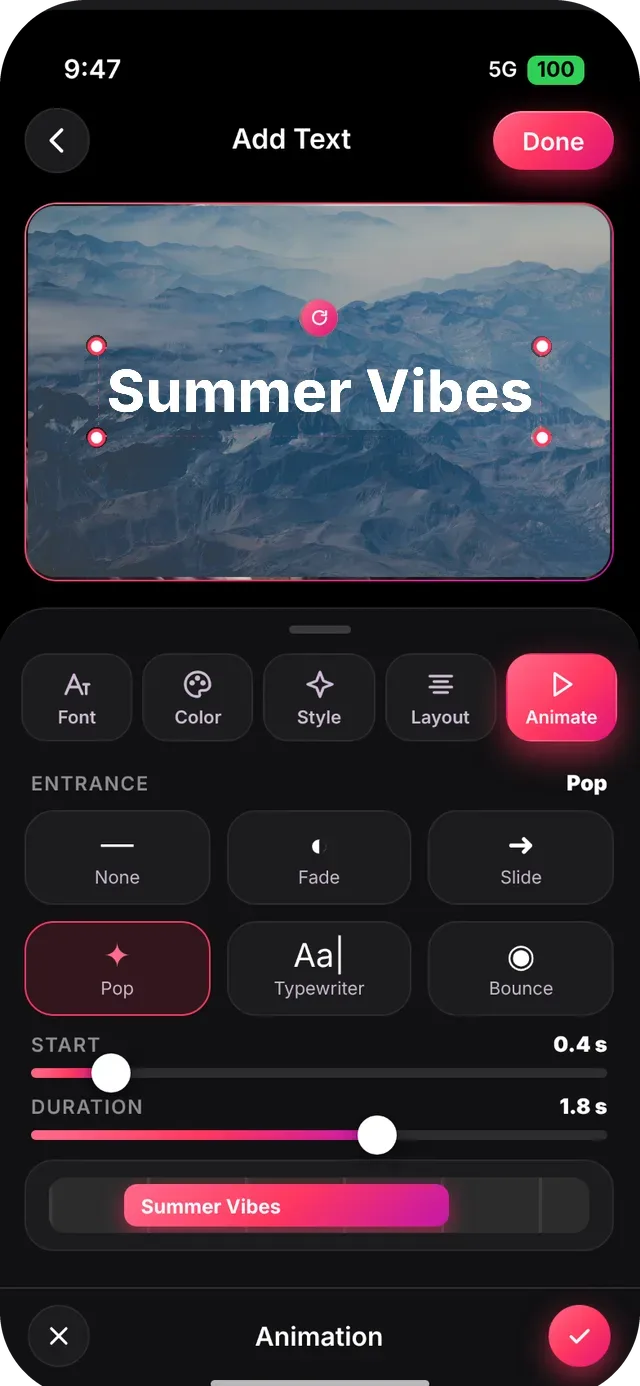
Photo editor: every menu and option
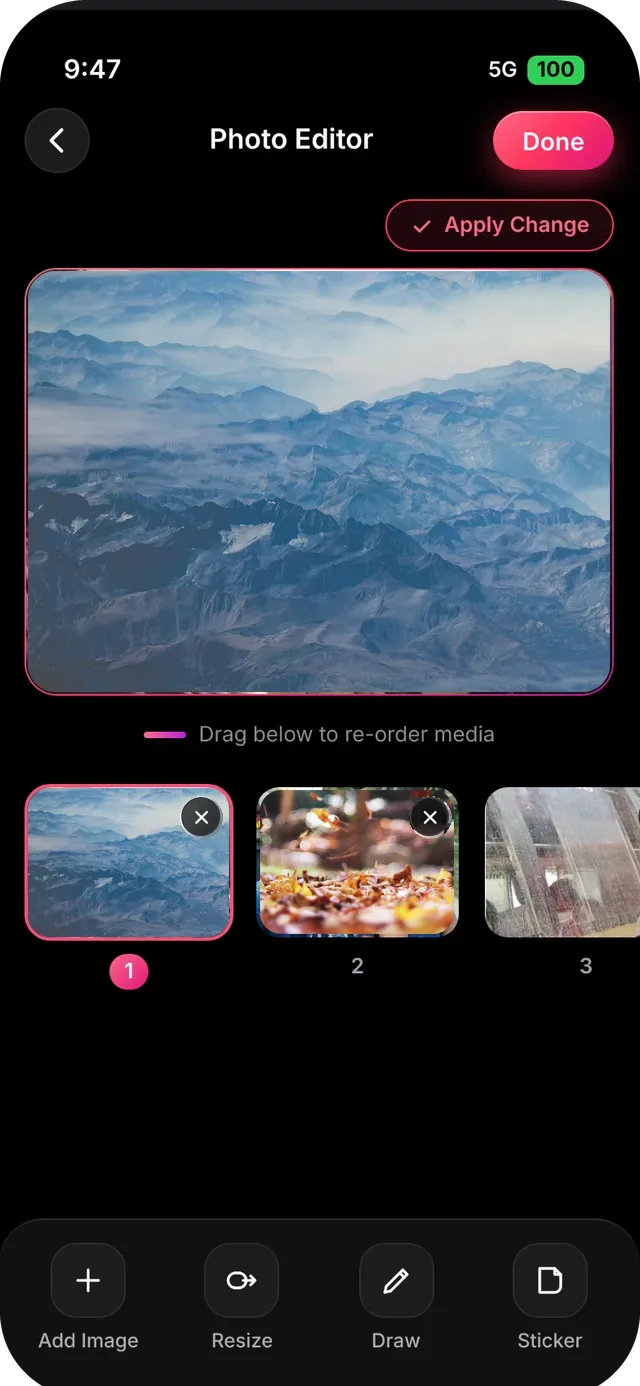
Open any photo from the editor to fine-tune it before it joins the slideshow. The preview never moves, so every edit stays visible.
| Menu | What it does |
|---|---|
| Add Image | Bring another photo into your edit session. The thumbnail strip shows every photo with a number badge; drag a thumbnail to re-order, tap the small x to remove one. |
| Resize | Crop and change the aspect ratio of the photo. |
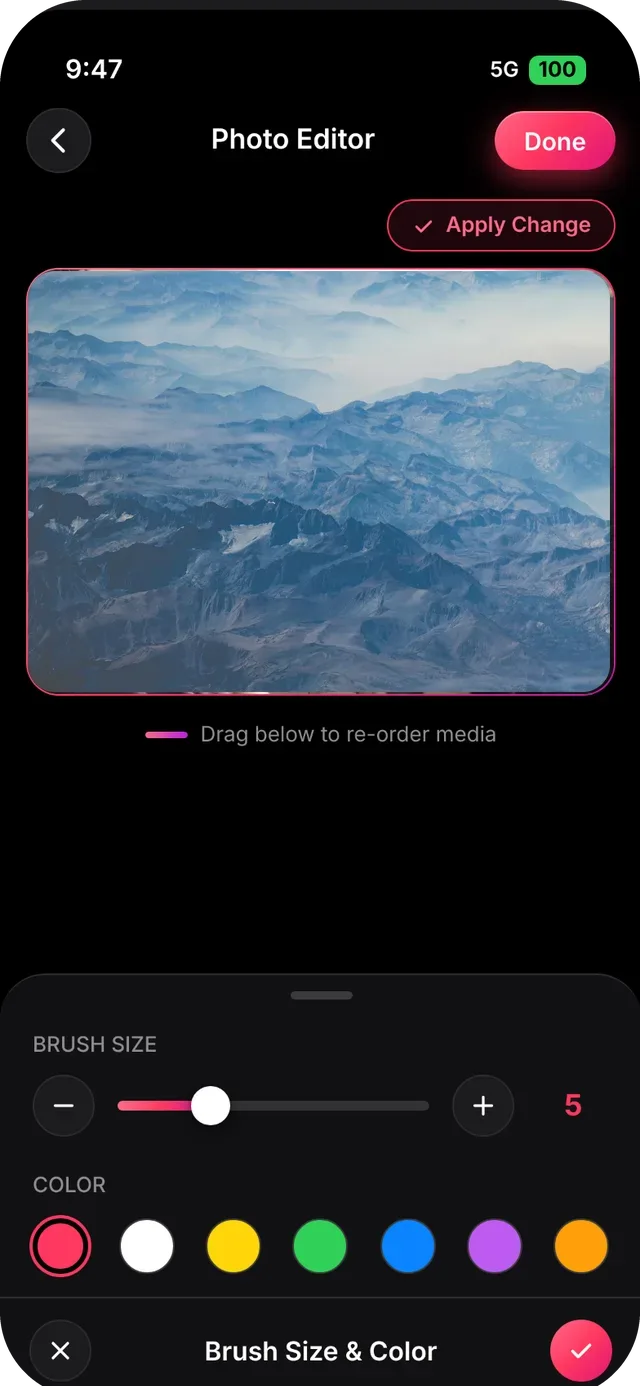
| Draw | Sketch on the photo. Set the Brush size with the slider or the minus and plus buttons, and pick a color from the row. |
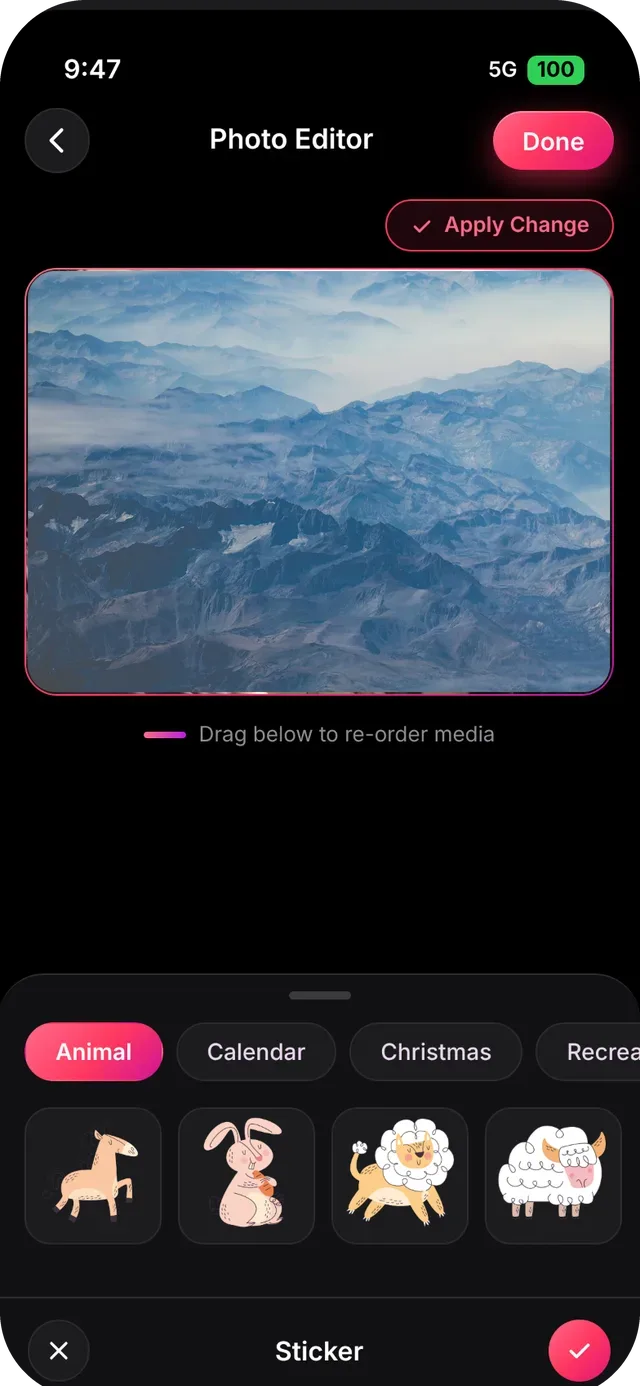
| Sticker | Place stickers on the photo. Category chips scroll sideways; stickers sit on dark tiles. |
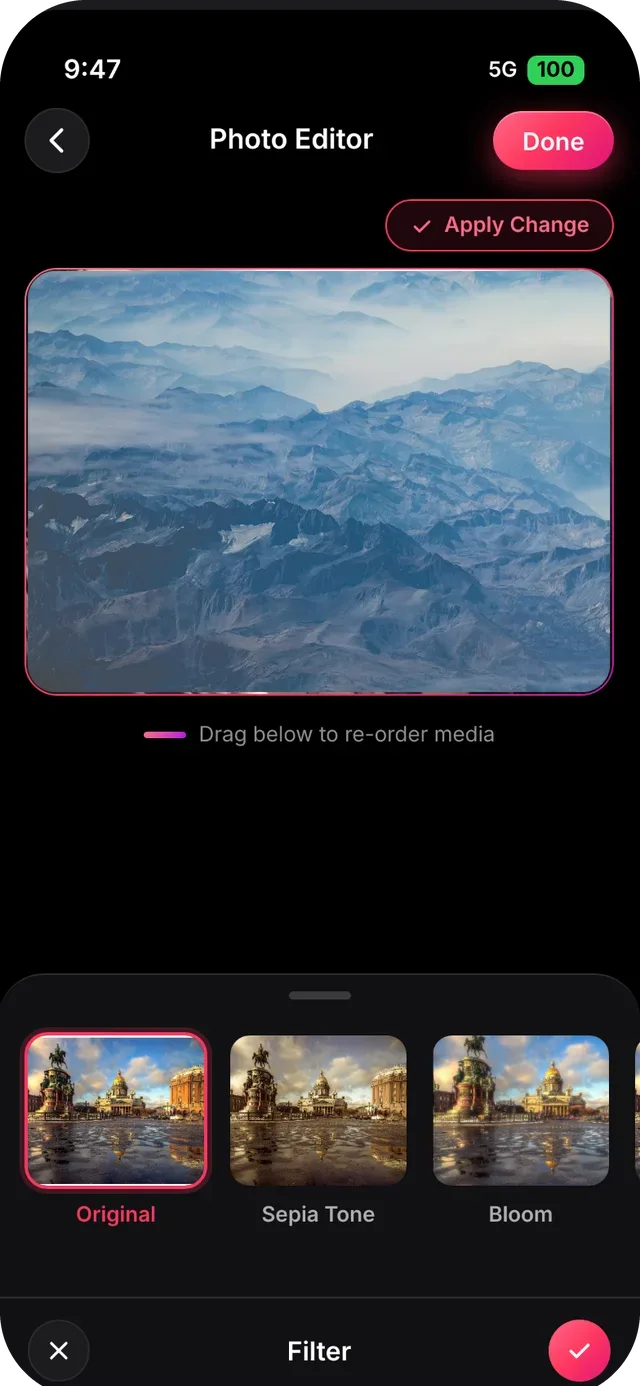
| Filter | Start from Original or tap a filter thumbnail such as Sepia Tone or Bloom, plus effects like Vibrance, Temperature Tint, Exposure Adjust, Hue Adjust and Blur. |
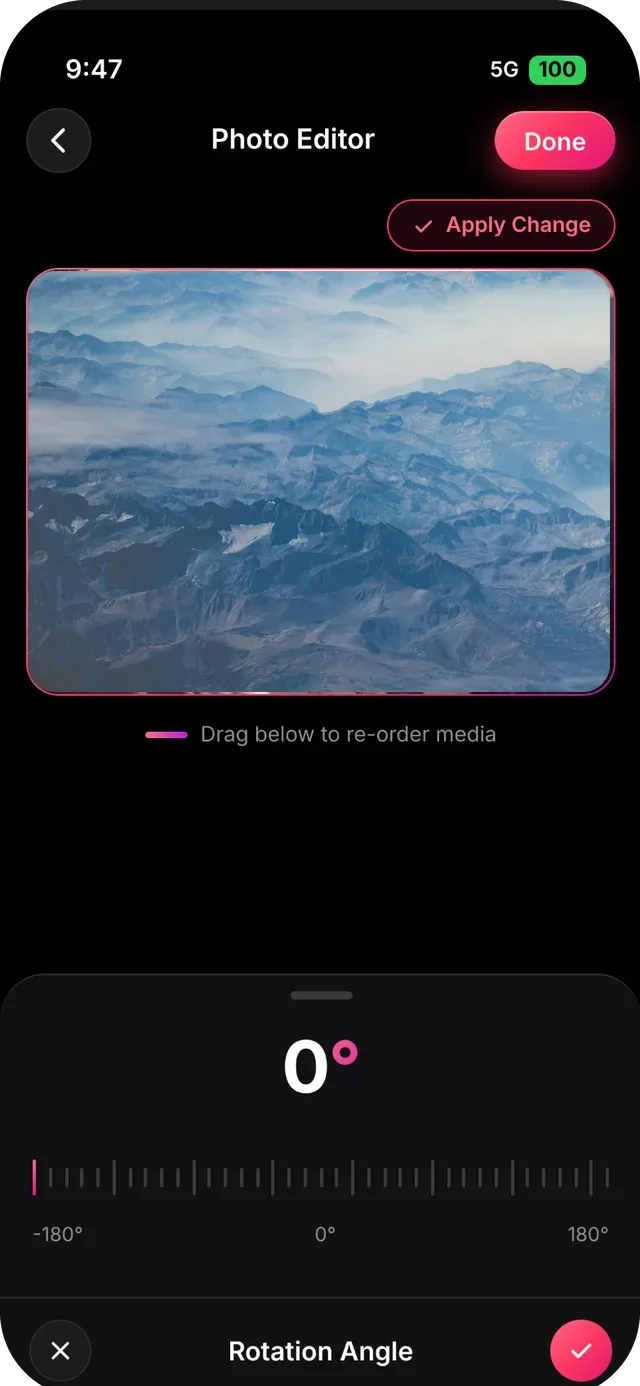
| Rotate | A large angle readout over a tick ruler from -180° to 180°. The ruler snaps to 5° steps. |
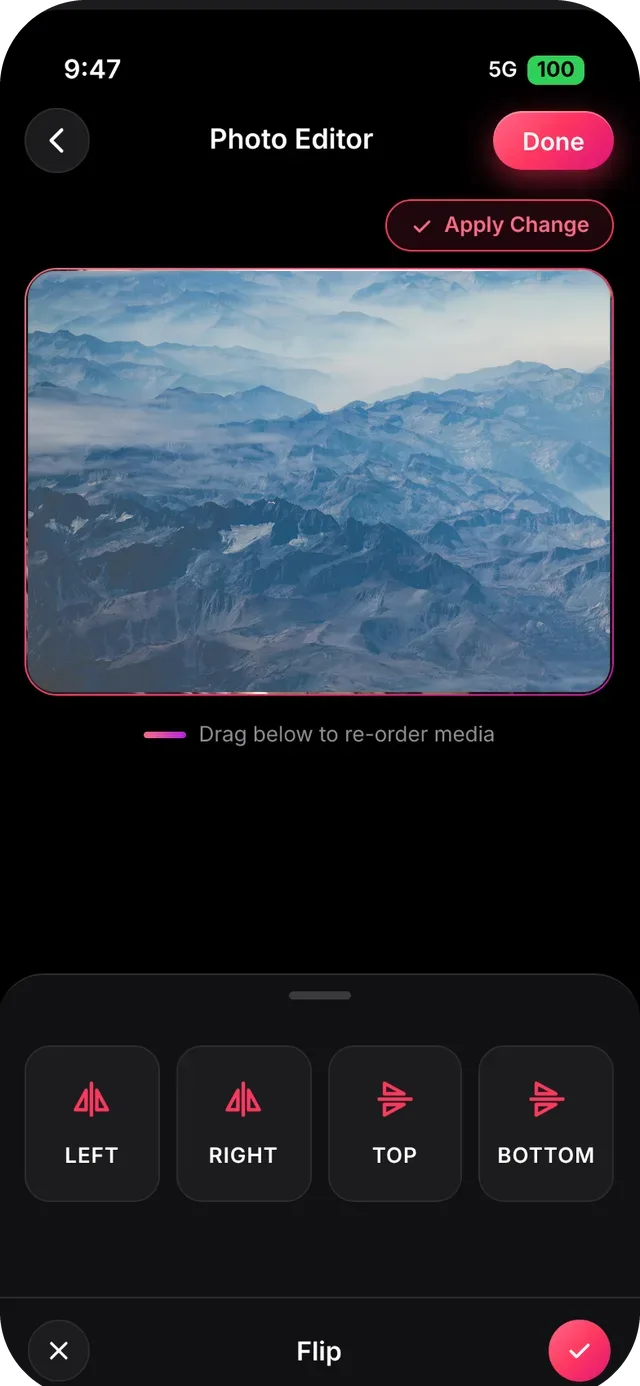
| Flip | Four tiles: Left, Right, Top and Bottom. One tap mirrors the photo. |
- Tap a photo in the editor and choose the photo editor.
- Pick a menu in the dock at the bottom. Every sheet has the same bar: x to cancel and a check to apply.
- Tap Apply Change at the top to keep your edits, then Done. If you leave early you can choose Save Changes, Remove changes or Exit.
Picture-in-Picture (PiP) video or image
Show a second video or photo on top of your slideshow.
- Tap PiP and choose a video or photo from your library.
- The overlay appears on the preview. Drag it to position it and pinch to resize.
- On the timeline, drag the PiP bar to set when it starts and ends, or use Set Duration.
- Preview, adjust and tap Done. Delete it from the timeline to remove it.
Drawing & annotation on photos and video
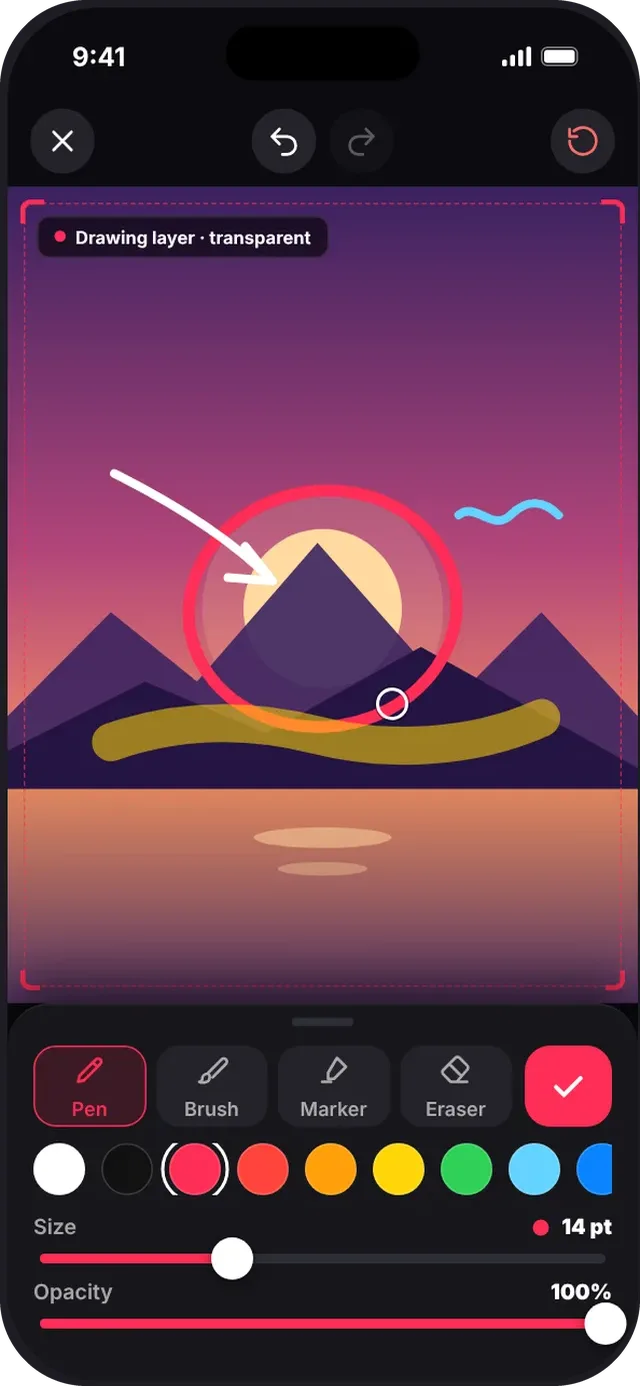
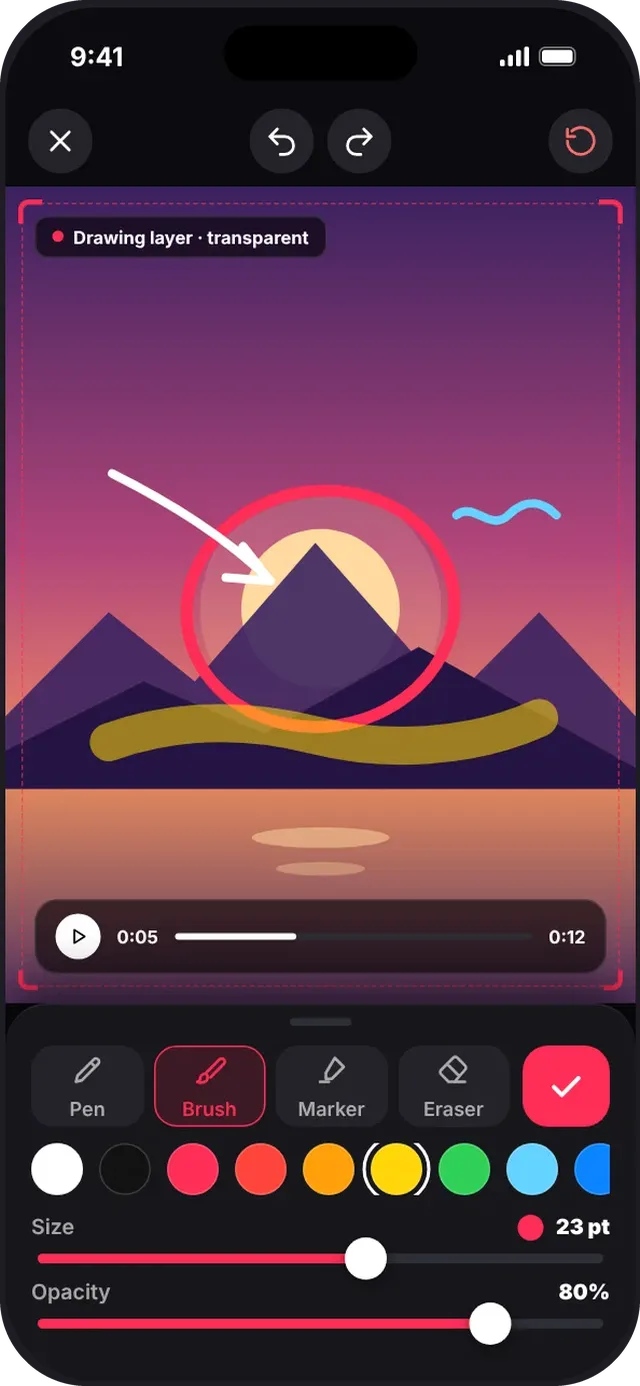
The annotation editor opens full screen over your photo or video. The media is the background, a transparent canvas sits above it, and the drawing panel docks at the bottom.
- Tap Draw in the editor toolbar.
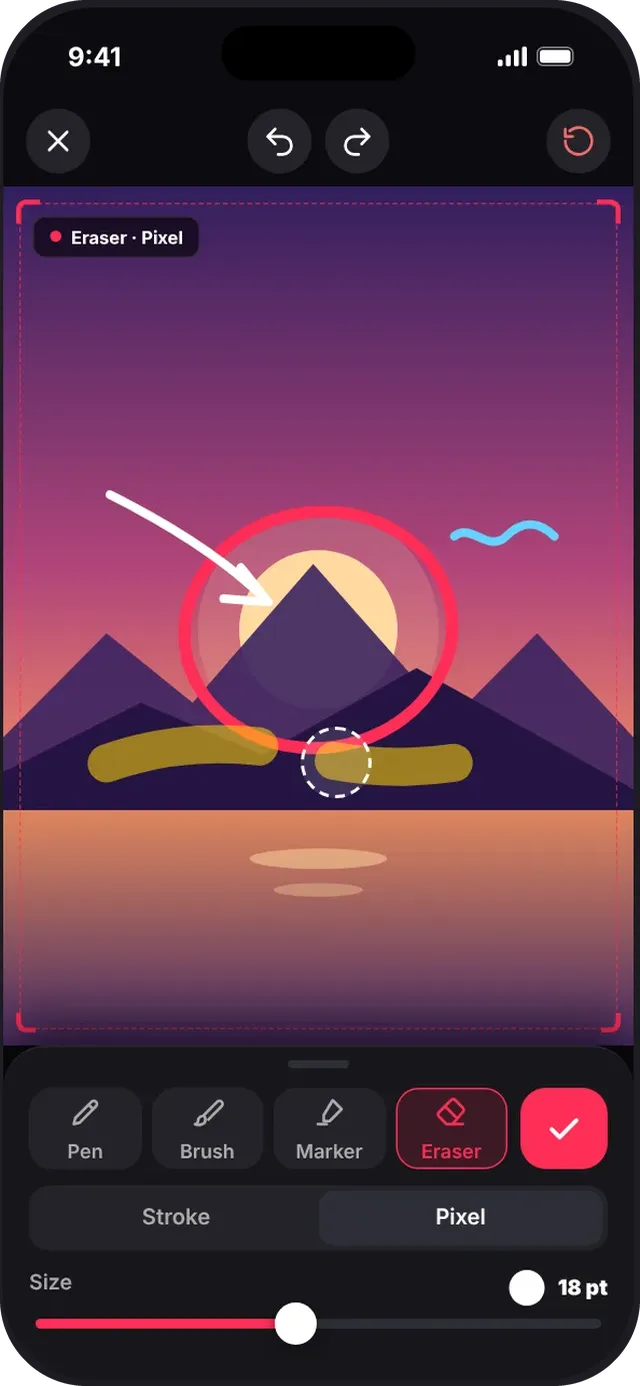
- Choose a tool: Pen, Brush, Marker or Eraser. Pick a color from the row, then set Size and Opacity with the sliders.
- Draw on the media with your finger. Pinch to zoom and pan with two fingers; your strokes follow the media.
- On a video, a playback bar floats over the stage. Scrub it to pick the exact frame you want to annotate.
- With the Eraser, choose Stroke (removes a whole stroke) or Pixel (rubs out part of it). A dashed ring on the canvas shows the exact eraser size.
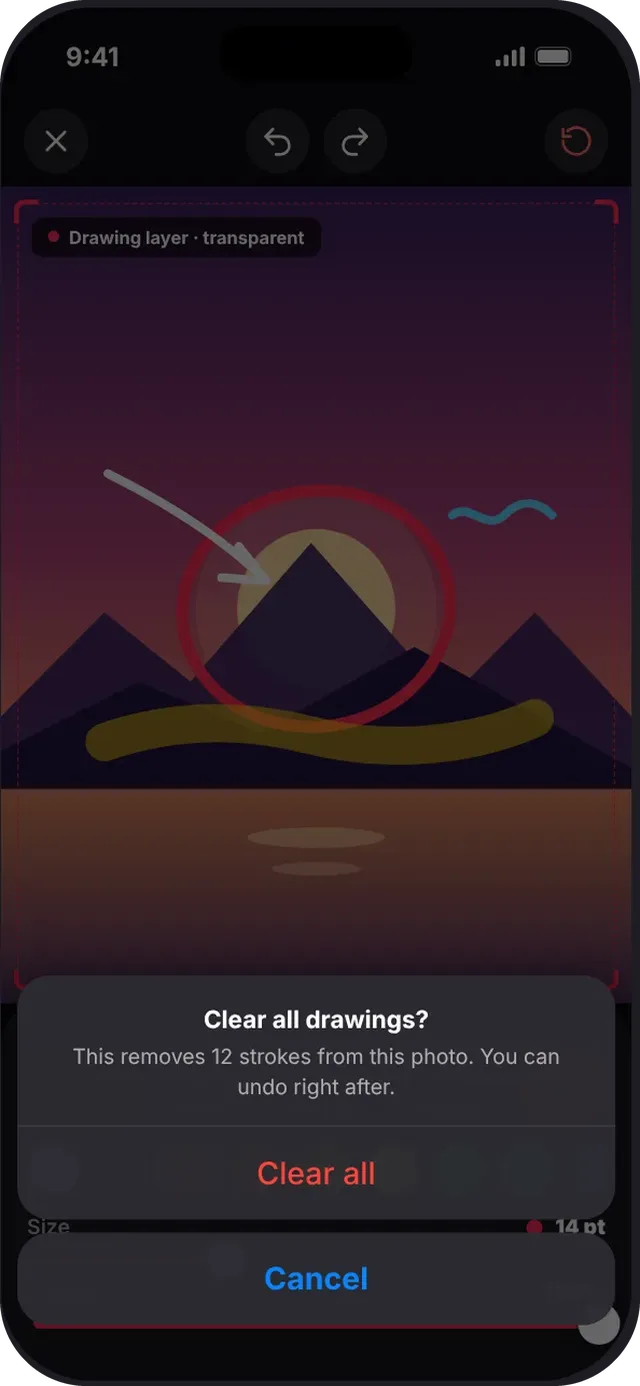
- Use Undo and Redo at the top. The reset button asks Clear all drawings? and, after you confirm, shows a 5-second Undo toast.
- Tap the check to save the layer. The drawing becomes a timeline item: drag its handles to choose when it appears and disappears. Tap Close (x) to leave; if you have strokes you are asked to Discard or Save.
Export video: every section
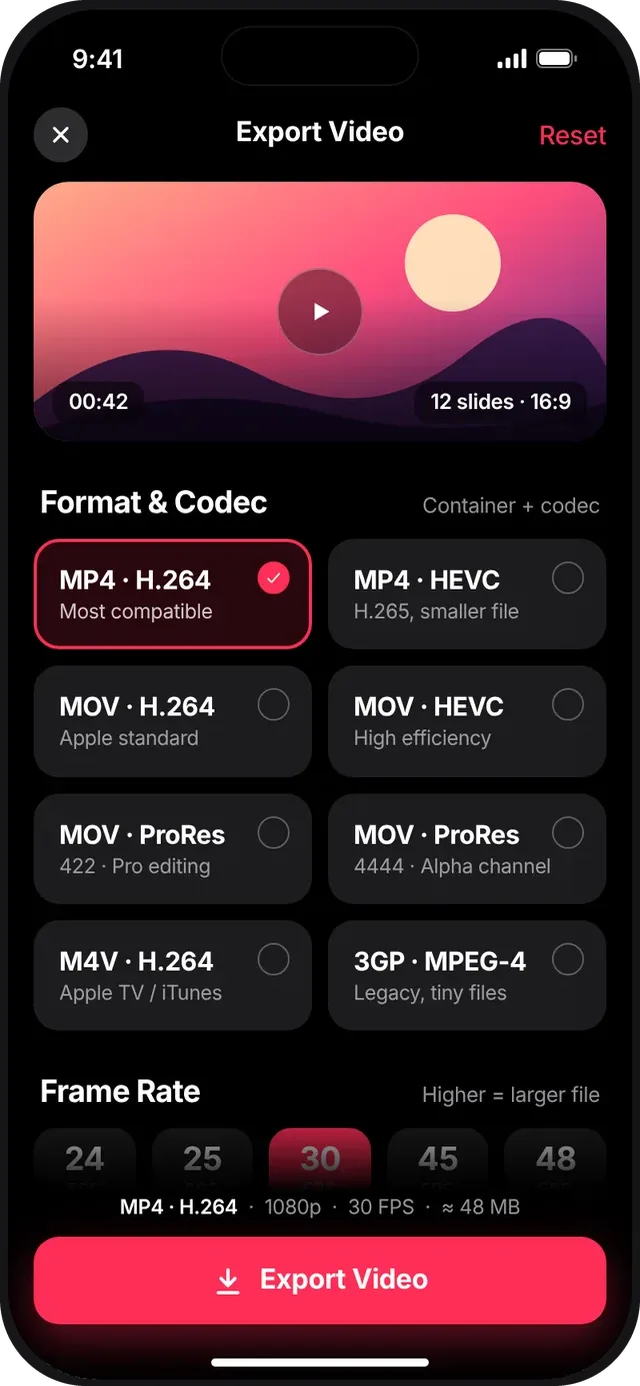
When you're happy, tap Export. The export screen shows a preview header and a set of options with a live size estimate.
| Section | Details |
|---|---|
| Preview | Your video with its length, number of slides and aspect ratio. |
| Format & codec | MP4 · H.264 (most compatible) or HEVC (smaller), MOV · H.264, HEVC, ProRes 422 (pro editing) or ProRes 4444 (alpha channel), M4V · H.264 (Apple TV / iTunes) and 3GP · MPEG-4 (tiny legacy files). |
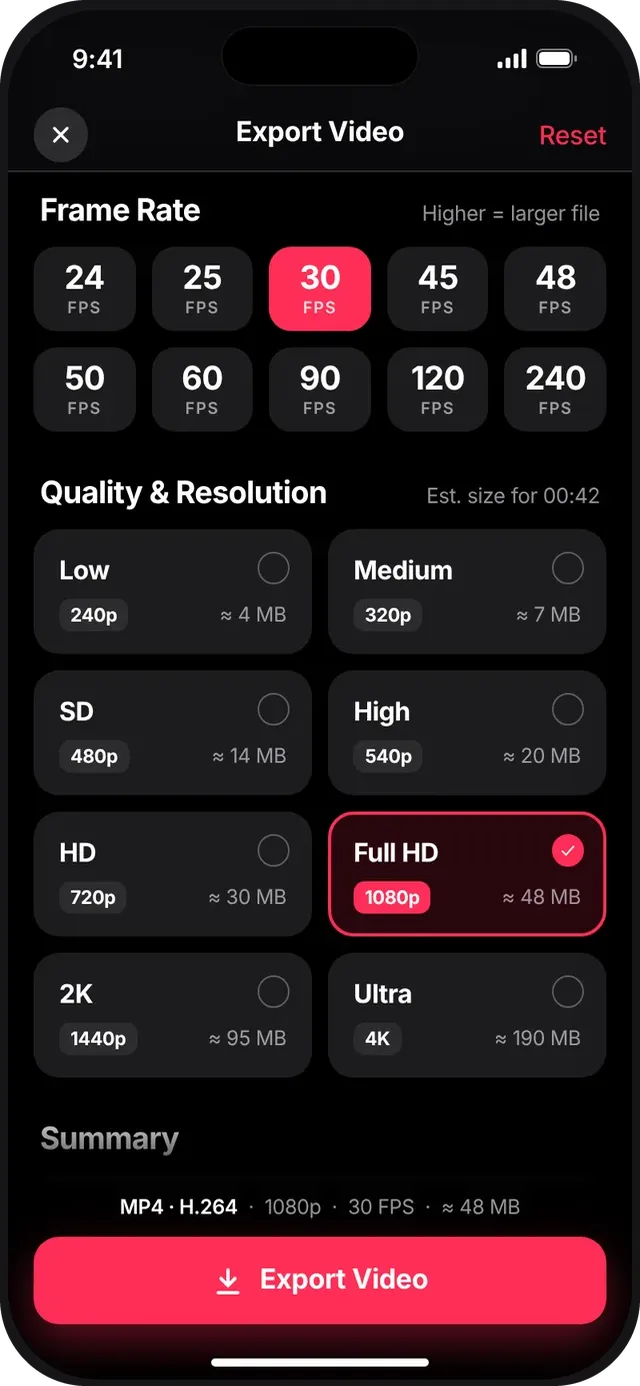
| Frame rate | 24, 25, 30, 45, 48, 50, 60, 90, 120 or 240 fps. Higher means a larger file. |
| Quality & resolution | Low 240p, Medium 320p, SD 480p, High 540p, HD 720p, Full HD 1080p, 2K 1440p and Ultra 4K, each with an estimated size for your video length. |
| Summary | A one-line recap (format, resolution, frame rate, size) above the sticky Export Video button. Reset at the top returns every option to its default. |
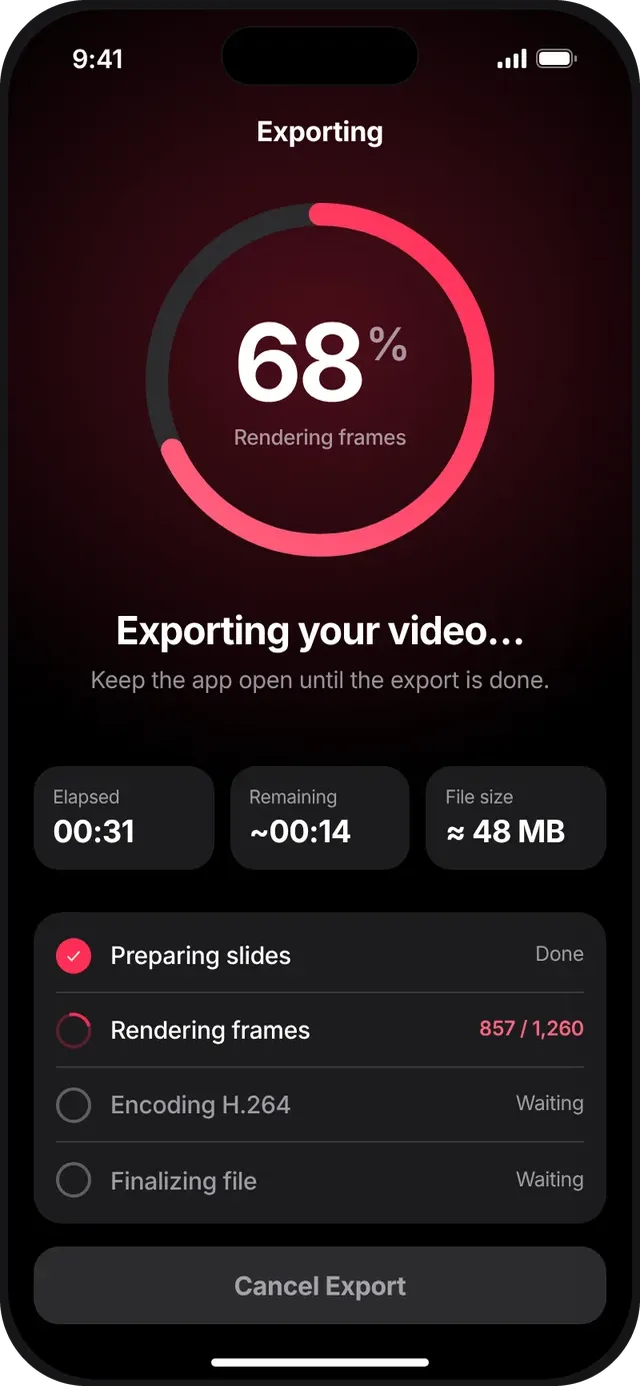
| Progress | A ring with the live percentage, elapsed time, time remaining and file size, plus a checklist: Preparing slides, Rendering frames, Encoding, Finalizing file. Cancel Export is always available. |
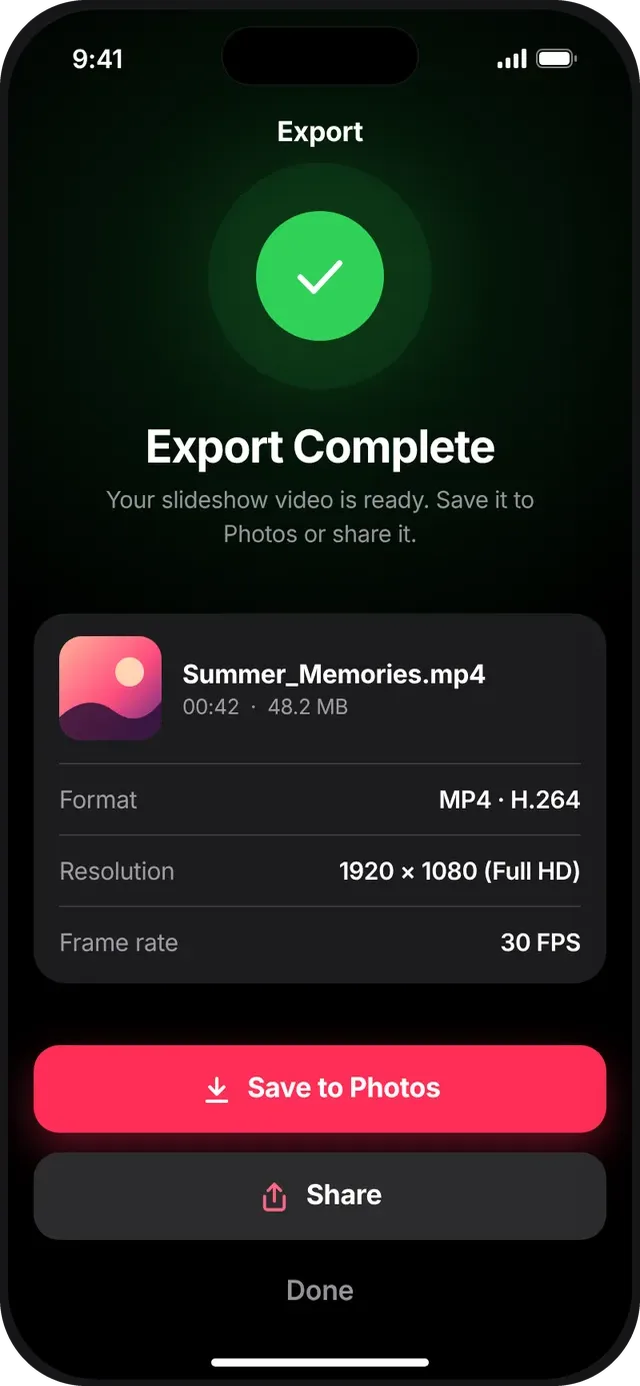
| Success | Tap Save to Photos (main action), Share, or Done. |
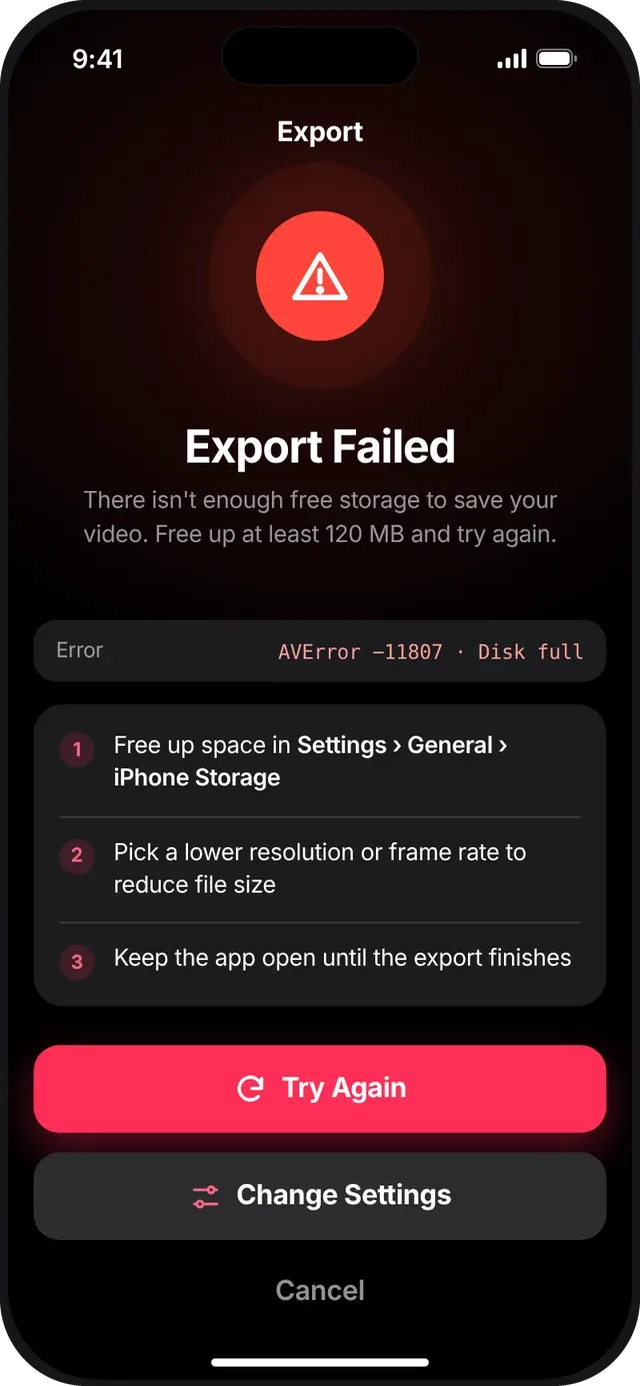
| Error | A clear reason and error code, with fix suggestions. Try Again reuses the same settings; Change Settings takes you back. |
Settings: every option and its effect
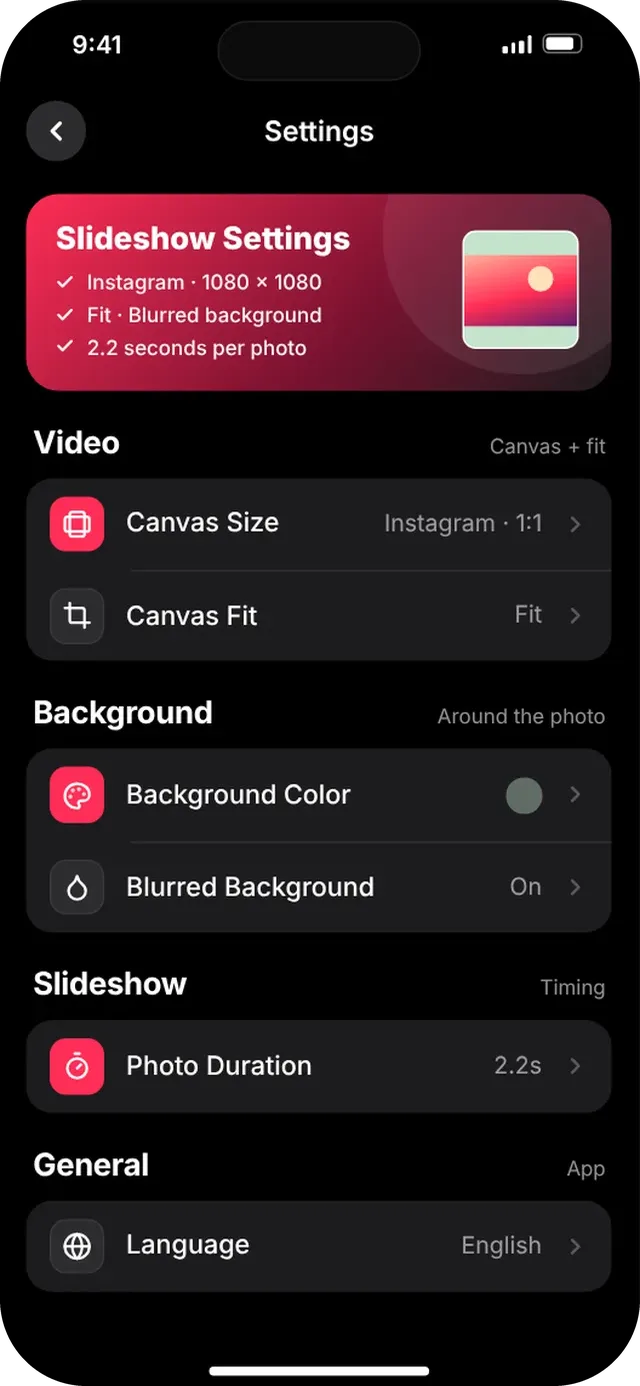
Open Settings to set the defaults for your slideshows. Every option is a row with an icon, a name and its current value. Changes apply instantly, so there is no Save button.
| Option | How to use | Effect on your video |
|---|---|---|
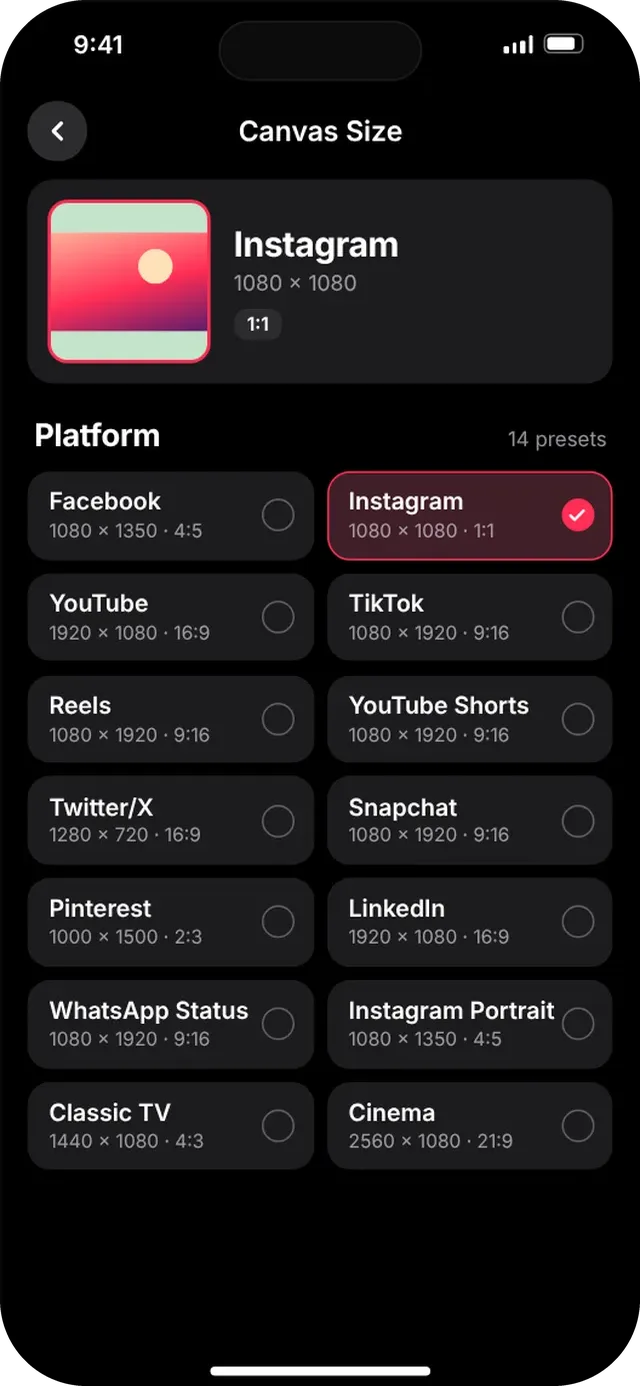
| Canvas Size | Tap the row, then choose one of 14 platform presets. A live preview card shows the shape. The selected card gets a pink border and a check. | Sets the size and aspect ratio of the exported video. |
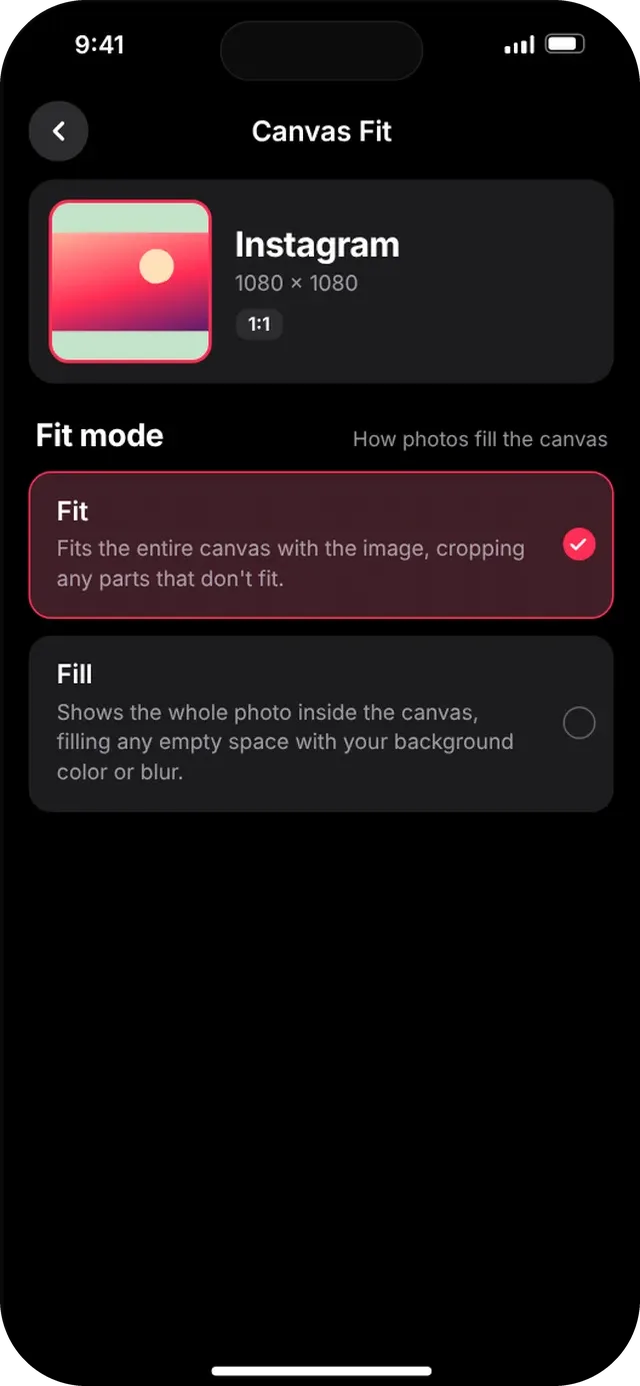
| Canvas Fit | Choose Fit or Fill. | Fit fits the entire canvas with the image, cropping any parts that don't fit. Fill shows the whole photo inside the canvas and fills any empty space with your background color or blur. |
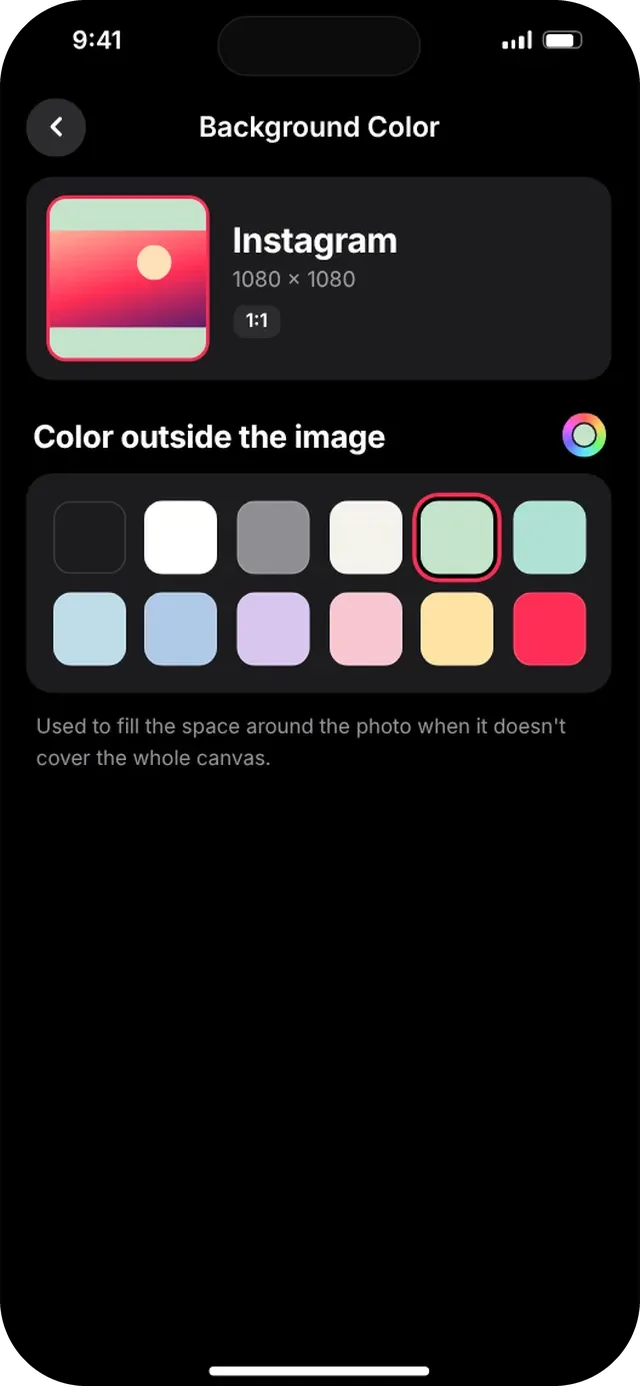
| Background Color | Pick one of 12 swatches or open the custom color picker. | Colors the space around a photo that doesn't cover the whole canvas. |
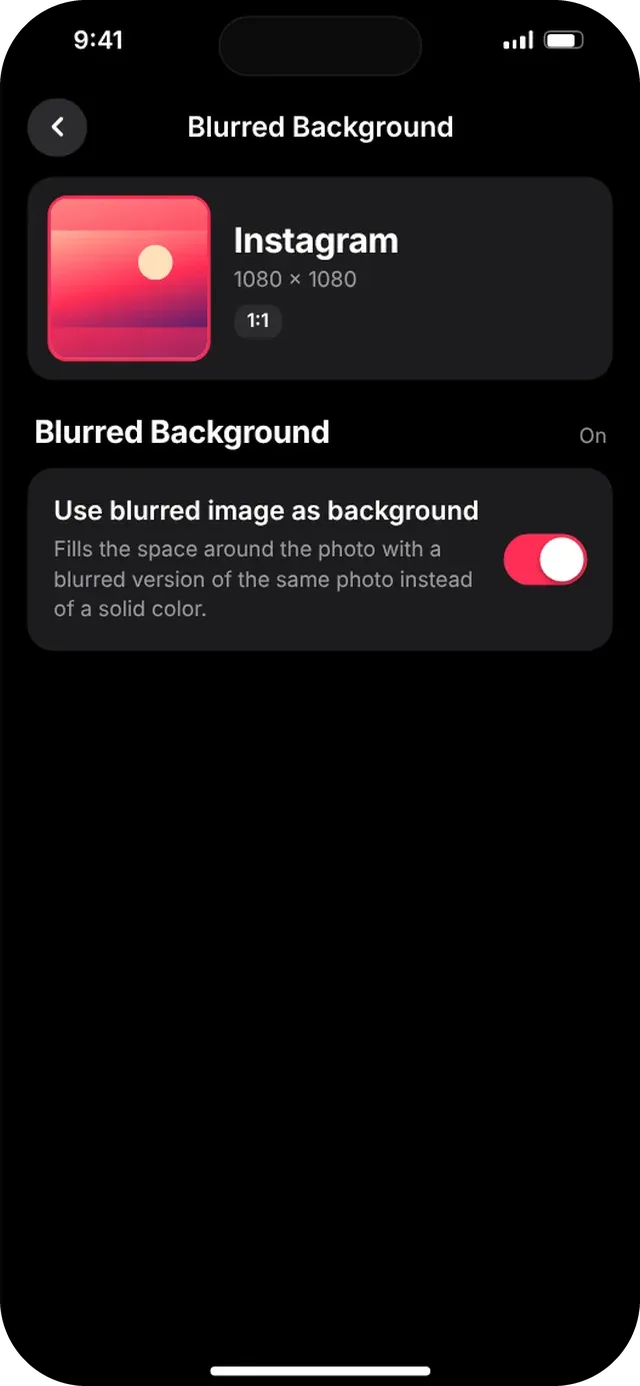
| Blurred Background | Toggle Use blurred image as background. | Fills the space around the photo with a blurred copy of the same photo instead of a solid color. |
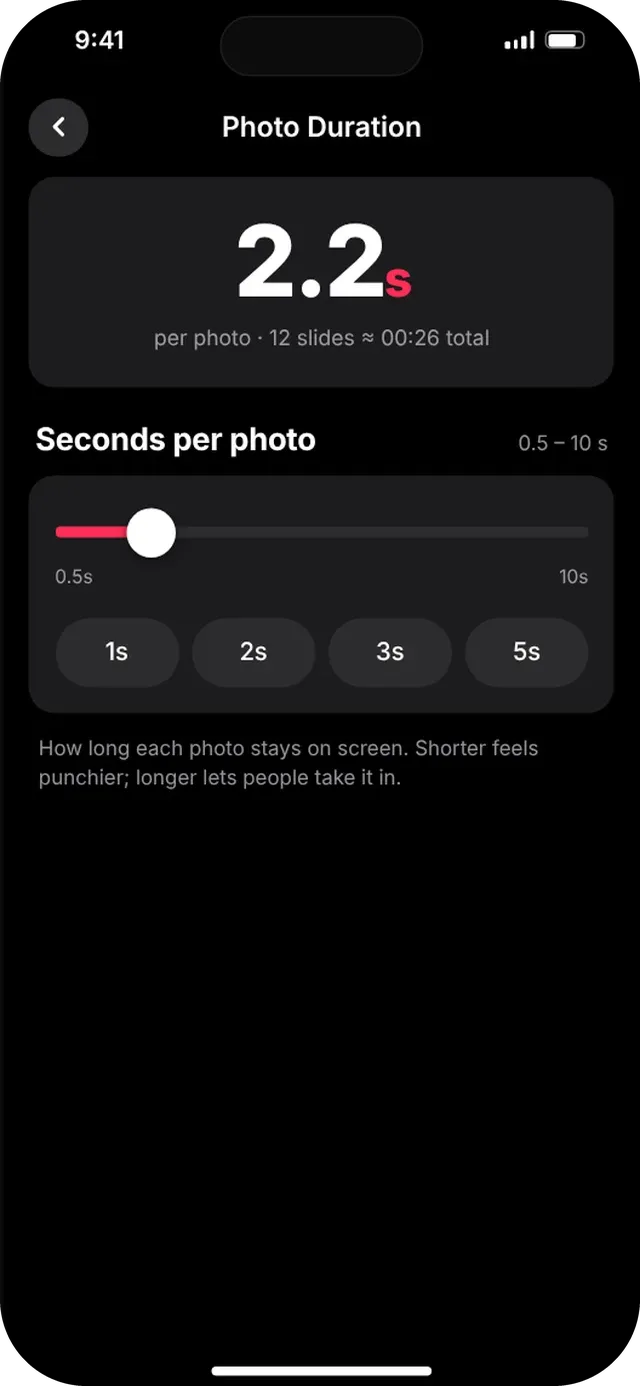
| Photo Duration | Drag the slider (0.5 to 10 s) or tap a preset: 1s, 2s, 3s, 5s. | Sets the default length of each slide. The screen shows the total length for your current slides. |
| Language | Choose from 18 languages. | Changes the app interface language. |
Canvas size presets
| Preset | Size | Ratio |
|---|---|---|
| 1080 × 1350 | 4:5 | |
| 1080 × 1080 | 1:1 | |
| YouTube | 1920 × 1080 | 16:9 |
| TikTok | 1080 × 1920 | 9:16 |
| Reels | 1080 × 1920 | 9:16 |
| YouTube Shorts | 1080 × 1920 | 9:16 |
| Twitter/X | 1280 × 720 | 16:9 |
| Snapchat | 1080 × 1920 | 9:16 |
| 1000 × 1500 | 2:3 | |
| 1920 × 1080 | 16:9 | |
| WhatsApp Status | 1080 × 1920 | 9:16 |
| Instagram Portrait | 1080 × 1350 | 4:5 |
| Classic TV | 1440 × 1080 | 4:3 |
| Cinema | 2560 × 1080 | 21:9 |
SlideshowVideoMaker Pro: subscribe, restore & manage
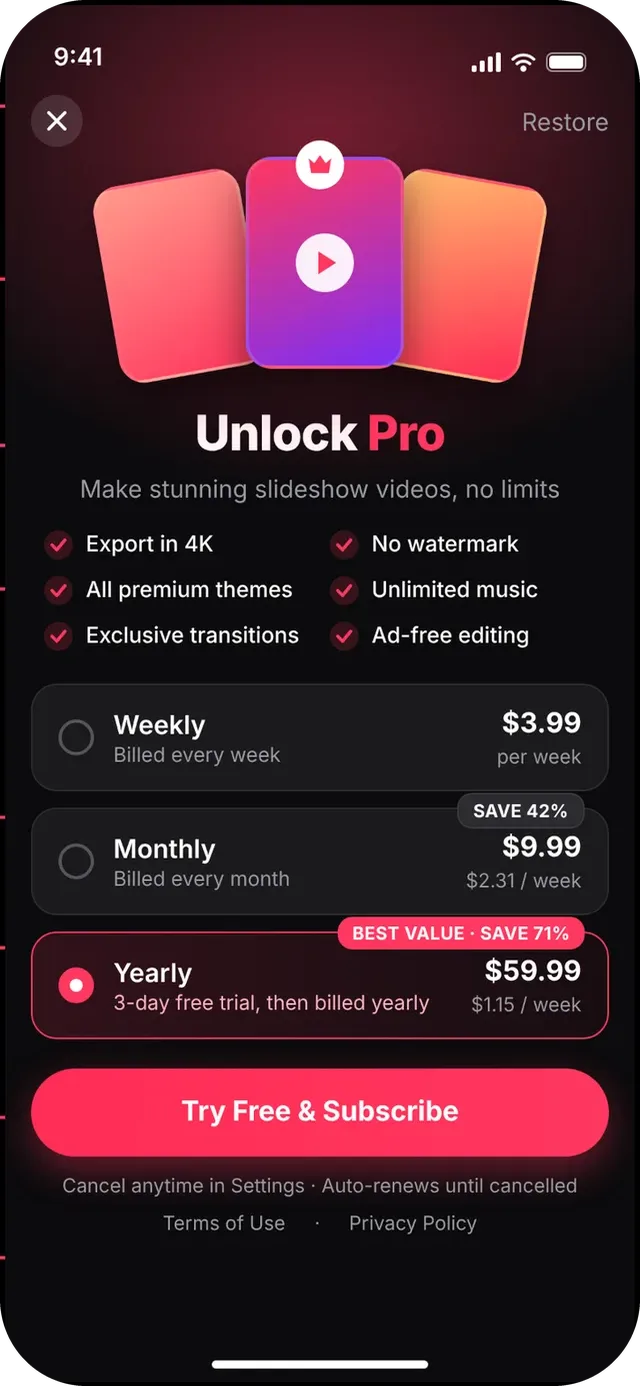
The app is free to download. Pro unlocks 4K export, no watermark, all premium themes, unlimited music, exclusive transitions and ad-free editing.
- The paywall opens when you choose a Pro feature (a premium theme, a premium transition pack or 4K export) or open Pro from Settings. It shows a preview of what Pro makes, a short list of benefits and three plans.
- Pick a plan: Weekly ($3.99 per week), Monthly ($9.99, save 42%) or Yearly ($59.99 with a 3-day free trial, best value, save 71%). Yearly is preselected. Each card also shows the price per week so plans are easy to compare.
- Tap the main button. It reads Try Free & Subscribe for the yearly trial and Subscribe for the other plans. Confirm in Apple's payment sheet with Face ID or Touch ID.
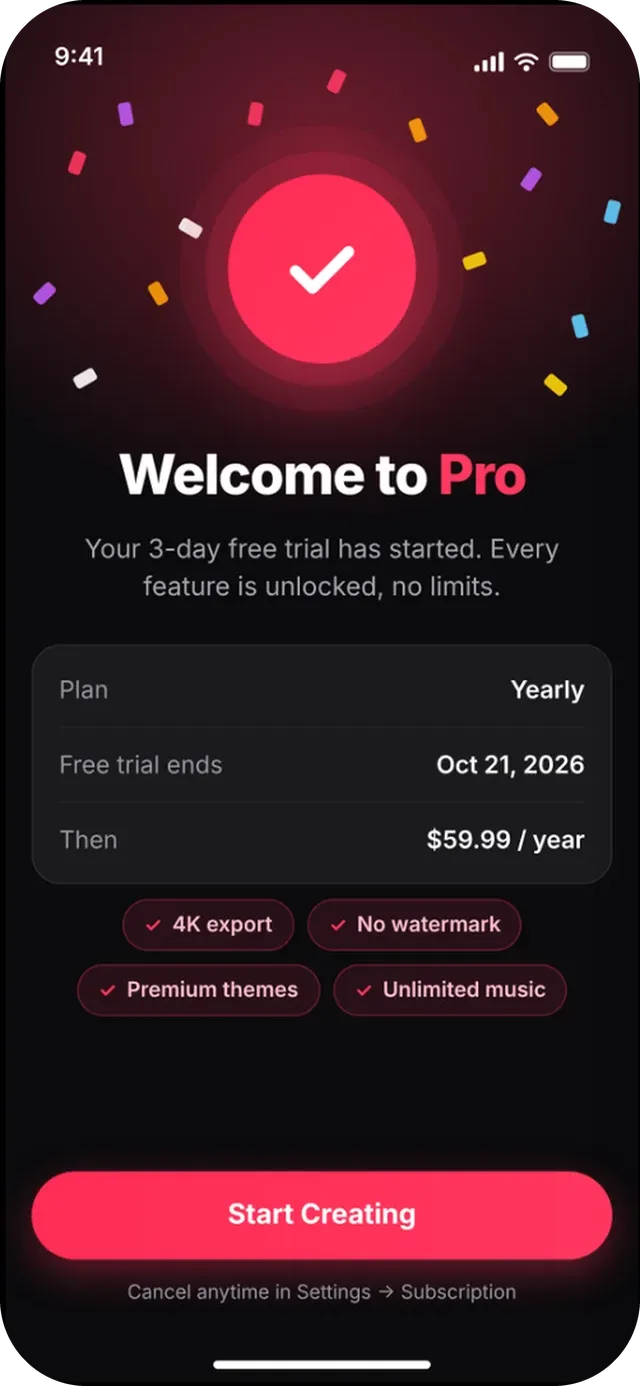
- You will see Welcome to Pro with your plan and, for a trial, the date it ends. Tap Start Creating to go back to your video.
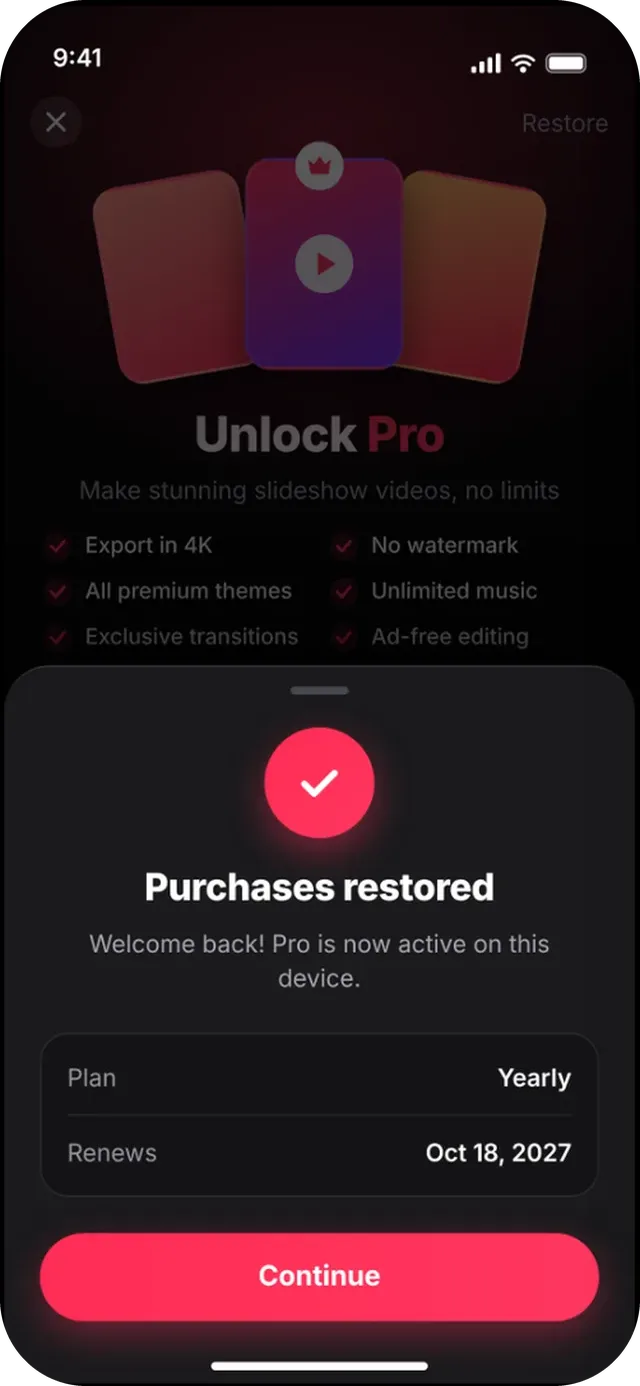
- Restore: if you already subscribed (for example on a new iPhone), tap Restore at the top right. You will see Purchases restored, or No purchases found with Try Again.
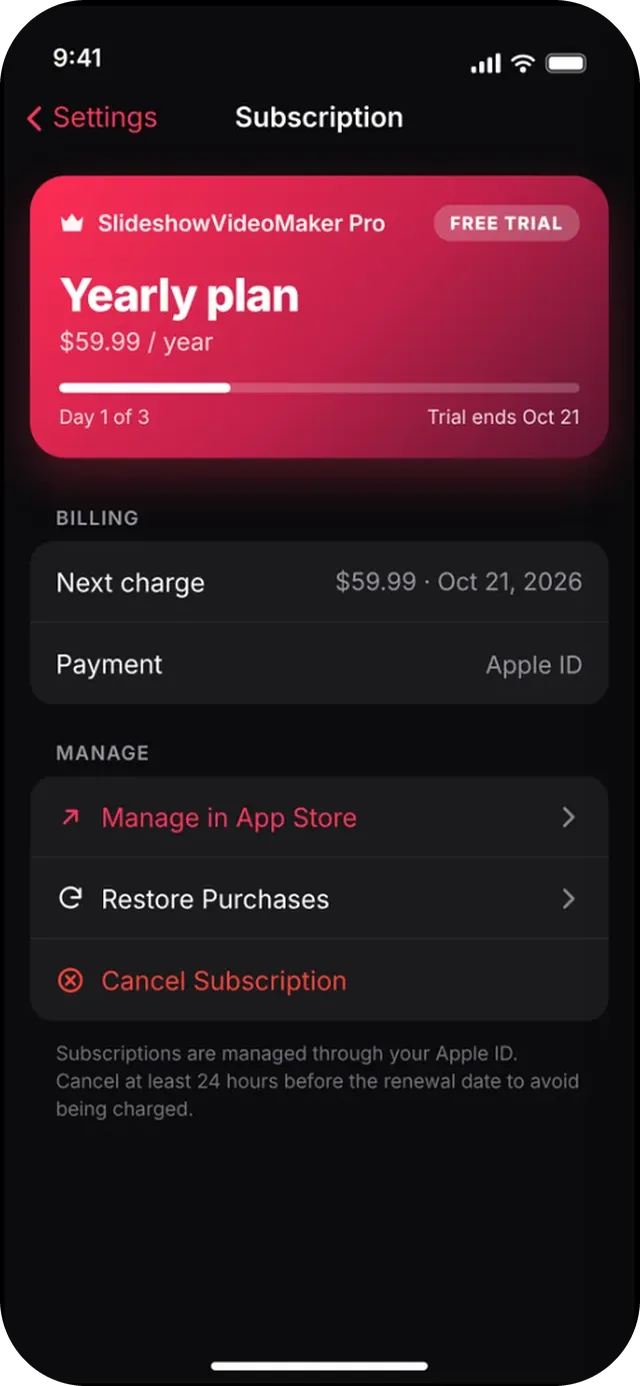
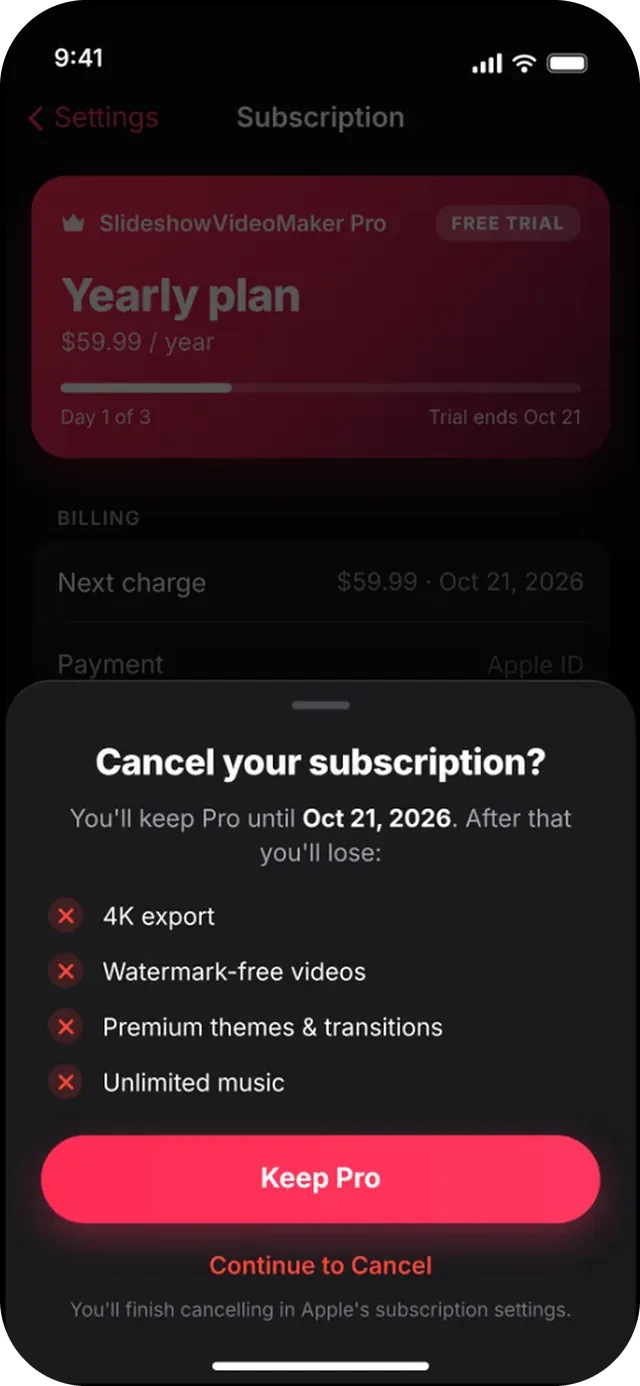
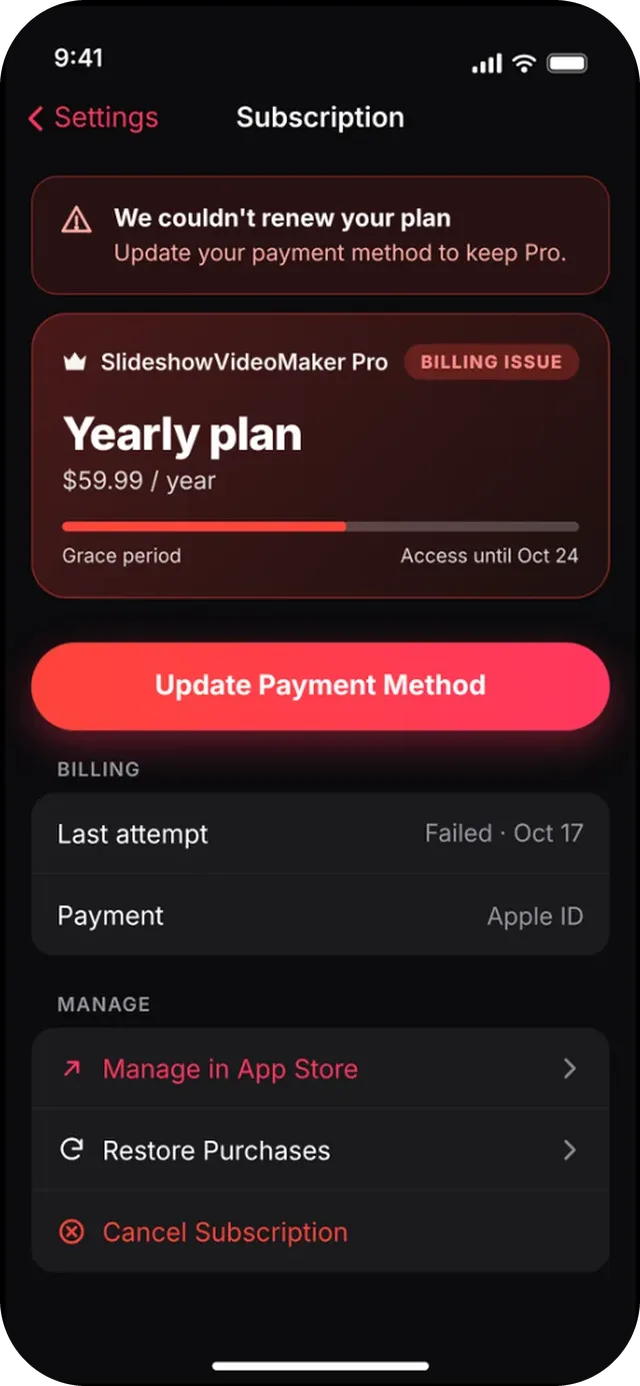
- Manage or cancel: open Settings, then Subscription to see your plan, next charge and payment method. Manage in App Store opens Apple's subscription page. Cancel Subscription first shows what you would lose, with Keep Pro or Continue to Cancel.
Prices are shown in US dollars; the app shows the price for your App Store region. Subscriptions renew automatically unless cancelled at least 24 hours before the end of the current period. Payment is charged to your Apple ID. See the Terms & Conditions.